
A coupon looks simple from the customer’s side. They enter a code, the total goes down, and they complete the order. Behind that one box, though, are decisions that can change who receives the discount, which products qualify, whether a renewal is discounted, and what happens when a campaign ends.
Those details become especially important around Black Friday and the year-end sale season. You might promise 20% off a product, only to discover the code also works on an excluded license tier. Or customers click a promotional email and reach checkout without seeing the offer. A perfectly reasonable campaign can turn into a support problem in a hurry.
The good news: you can create useful coupon campaigns in WordPress without writing code. In this guide, we’ll walk through two different setups: WooCommerce core, which includes standard coupon management, and FluentCart Pro, which has its own coupon creation screen and controls. We’ll build the same sample offer in both, explain the settings worth checking, and give you a test plan to run before sharing the code.
The example code SAVE20 is for demonstration only. It isn’t an active WPTopper coupon or a promise of a discount on any particular product.

Key Takeaways (TL;DR)
- WooCommerce core lets you create percentage, fixed-cart, and fixed-product coupons, with usage and product restrictions.
- FluentCart Pro offers coupon scheduling and eligibility controls; verify the exact fields against the installed version.
- Define eligible products, spending rules, customer limits, dates, and subscription treatment before sharing a code.
- Test guest and logged-in checkout, excluded items, expiry, and the final payment amount. A saved coupon is not a verified offer.
Before you create a coupon, decide what it should do
Open a blank note and write down five things: the amount of the discount, which products it applies to, who can use it, when it expires, and whether it can be combined with another offer. If you’re discounting a subscription, add a sixth: does it apply to the first payment or every renewal?
Let’s use a practical example. You sell a WordPress plugin for $100 per year. You want a 20% introductory discount for a short campaign. The code will be SAVE20. Customers should pay $80 for the first eligible payment; you do not intend to promise $80 renewals forever. You also want to protect a premium agency tier from the offer.
Notice how much more useful that brief is than “make a 20% coupon.” It tells you which restrictions to configure and, more importantly, what needs to be checked during testing.
A quick comparison of the two coupon systems
| Question | WooCommerce core | FluentCart Pro |
|---|---|---|
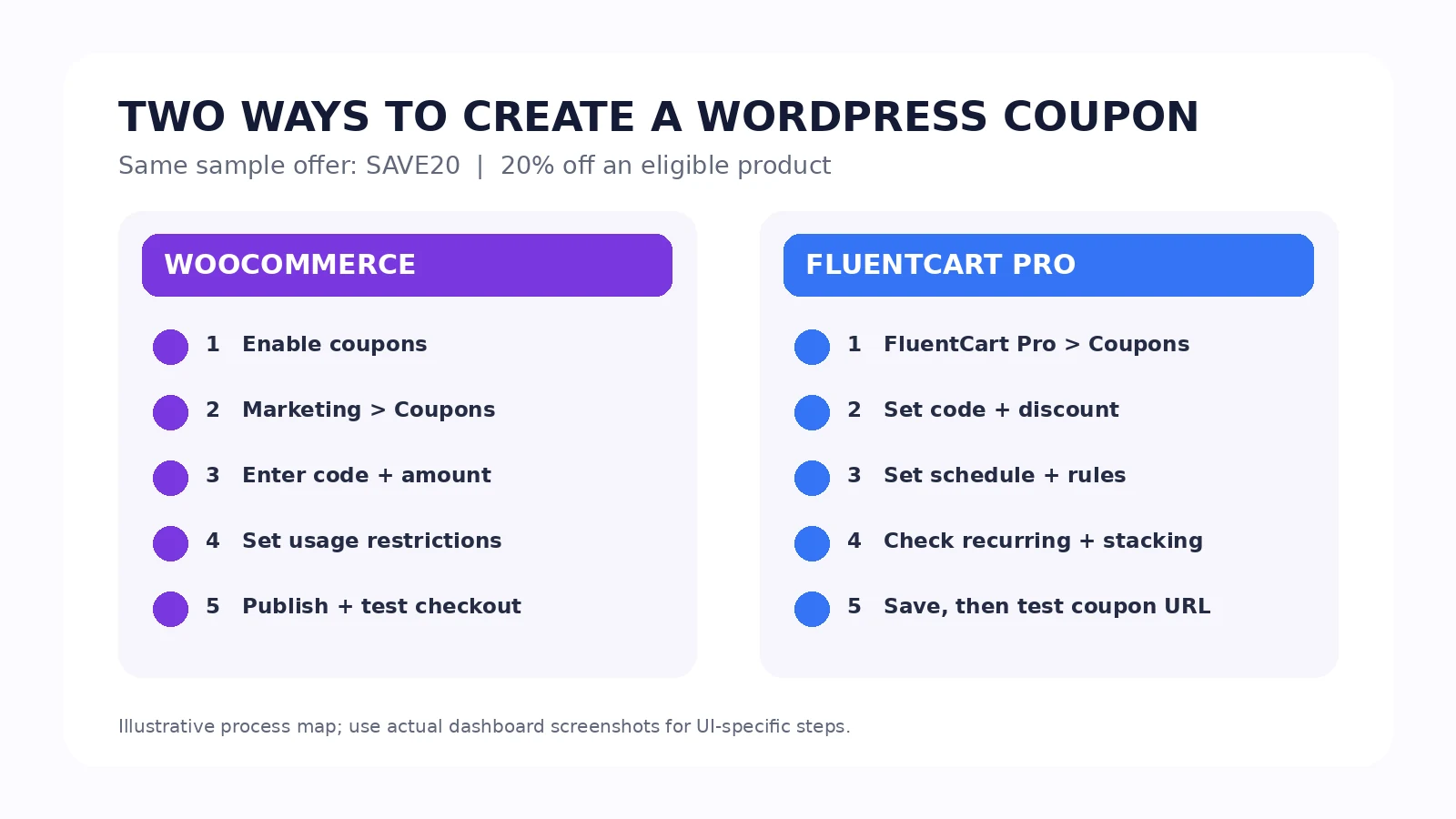
| Where do you create a coupon? | Marketing → Coupons → Add new coupon | FluentCart Pro → Coupons → Add Coupon |
| Common discount options | Percentage, fixed-cart, fixed-product | Percentage, fixed amount |
| Can you restrict products or customers? | Product/category rules, spending thresholds, allowed emails, usage limits | Product/category rules, spending thresholds, email rules, usage limits |
| Can you set campaign timing? | Expiry date; future publication scheduling is available | Start and end date/time controls |
| Can a shopper apply the code manually? | Yes, in cart or checkout | Yes, during checkout |
| Does it automatically apply a public coupon? | Not in core; use an extension/customization | Coupon URLs can pre-apply codes on supported instant checkout URLs |
| Can coupons affect subscription renewals? | Requires the relevant subscription extension and its coupon types | Documented recurring coupon option in FluentCart Pro |
This comparison is based on the platforms’ official documentation, not a hands-on test of your specific installed versions. Other active plugins can add fields or change behavior. If a menu or setting looks different, check which checkout and coupon extensions are active before following a screenshot from another website.
Before setting up a code, decide whether it is the right offer format. Our coupon, sale price, and bundle comparison explains when each option fits.
How to create a coupon code in WooCommerce
You can follow these steps with the regular WooCommerce plugin. You don’t need a premium coupon extension to create basic percentage or fixed-value codes.
Step 1: Enable coupons in WooCommerce settings
From your WordPress dashboard, go to WooCommerce → Settings → General. Find the option to enable coupon codes, turn it on, and save the changes.
If you skip this, you’ll be looking for a coupon field or expecting customers to enter a code while the store’s coupon feature is disabled. Confirm the setting first, especially on a site that has not run promotions before.
Step 2: Open Marketing → Coupons
Go to Marketing → Coupons, then choose Add new coupon. Enter SAVE20 as the coupon code. You can also ask WooCommerce to generate a random code.
Use short codes that customers can read and type easily. An internal campaign code such as OCTWELCOME20 is meaningful to your team, but it may be a little long for someone checking out on a phone. Avoid inventing fake urgency in the code itself. “EXPIRES-TONIGHT” isn’t a sensible choice for an offer you might reuse next month.
WooCommerce also lets you add an internal description. Include the reason for the coupon and its intended audience so a teammate understands what it does later. For example: “October first-purchase plugin campaign; exclude agency tier; first payment only if subscriptions are involved.”
Step 3: Choose the discount type and value
In Coupon data → General, choose the discount type:
- Percentage discount deducts a percentage from eligible items. Enter 20 for our SAVE20 example.
- Fixed cart discount deducts a set amount from the eligible cart total. A code with amount 15 takes $15 off the cart, subject to applicable rules.
- Fixed product discount deducts a set amount per eligible item. This is different from $15 off the whole order. If three eligible products each receive $15 off, the combined discount can be $45.
Do not type a percentage sign or currency symbol in the amount box. Enter the numeric amount. If you want a fixed-value offer, check the average order size first so you don’t accidentally advertise a $20 discount on a $15 item.
You can also configure an expiry date. For free shipping, the coupon option works together with your store’s free-shipping method and settings; checking a box alone isn’t a guarantee that all shipping charges will disappear.
Step 4: Add the restrictions that keep the offer focused
Open Usage restriction. This is where a broadly advertised code becomes a controlled campaign.
For our example, exclude the agency-tier product using Exclude products, or include only the product that should receive the discount. You can also restrict categories, exclude products that are already on sale, set minimum or maximum spending levels, and allow selected billing email addresses.
Pay attention to Individual use only. If it’s checked, the code can’t be combined with other coupons. That can be important when a customer already has a loyalty code or a separate referral offer. Check your storefront’s specific behavior before promising that multiple discounts will stack.
An important distinction: an Allowed Emails restriction is not the same thing as a built-in “new customers only” condition. WooCommerce offers extensions for advanced restrictions. Don’t describe new-customer targeting as a core checkbox unless you’ve verified that an installed extension provides it.
Step 5: Set usage limits and publish
Open Usage limits. You can limit total redemptions across the store, the number of times one customer can use a code, and in certain product-restricted setups the number of items eligible for the coupon.
For a one-use-per-customer campaign, set the per-user limit accordingly and test what happens with logged-in shoppers and guest checkout. Guest identity and abuse prevention have edge cases; usage limits are useful controls, not a guarantee that nobody can attempt to circumvent an offer.
Then Publish the coupon. If you plan to make the coupon available later, check WooCommerce’s future publication scheduling, as well as its expiry date. The two controls solve different timing problems.
Step 6: Test how buyers will actually use the code
WooCommerce core requires shoppers to enter the code in cart or checkout and apply it. It does not automatically apply ordinary coupons. Test an eligible product at the correct price, then test a product you excluded. Check the checkout on mobile, too; customers who can’t find the coupon box may conclude the offer is broken.
If you’re aiming for a one-click coupon link or fully automatic application, look at an appropriate extension such as WooCommerce Smart Coupons. Don’t tell customers that a link will apply a core coupon unless you have actually configured and tested that functionality.
How to create a coupon code in FluentCart Pro
FluentCart uses a different dashboard workflow, so don’t look for the WooCommerce “Marketing → Coupons” screen. The official FluentCart documentation places coupon management under FluentCart Pro → Coupons. That distinction matters if you’re comparing a free installation with a Pro-enabled one.
Step 1: Open the FluentCart coupon screen
From the WordPress dashboard, choose FluentCart Pro → Coupons. Click Add Coupon.
You’ll see a setup screen for the code, discount, schedule, usage rules, and additional settings. The list screen also shows details such as usage counts, active/inactive status, and expiry, which helps you audit what is already running before creating another promotion.
Step 2: Give it a title and a customer-facing code
Set an internal Title that explains the campaign, such as “October Plugin Welcome Offer.” Then enter SAVE20 in the Code field, or use the random-code generator. Unlike the internal title, the coupon code is what the buyer uses.
FluentCart also provides an optional Coupon Priority setting. This can matter when you allow more than one coupon, but don’t treat it as a replacement for checking the stacking rules. For a simple welcome campaign, keep the configuration easy to explain.
Step 3: Select Percentage and set a maximum if needed
Choose Percentage and enter 20 as the discount amount. FluentCart also supports a fixed amount, such as $10 off.
One valuable control is Max Discount Amount. If you are running a percentage-based promotion across products with very different prices, a ceiling can prevent a surprisingly large deduction on a high-value order. Whether you use a cap should be part of your offer rules, not a last-minute fix after someone places an expensive order.
Step 4: Schedule the offer
Use the Schedule panel to define the Start Date & Time and, if the promotion should end, enable the end-date option and set its time. Confirm which timezone the site is using and test a code near the boundary if the campaign launches internationally.
A coupon that works in a staff member’s local timezone but expires early for customers is a frustrating way to start a Black Friday promotion. Make one person responsible for checking the published offer time against the email and landing-page copy.
Step 5: Configure eligibility and usage
FluentCart’s documented controls include minimum and maximum spend, included and excluded categories/products, and allowed email addresses. Use the included-product approach when only a small set of licenses is eligible; use exclusions when most products qualify but you need to protect particular tiers.
For Maximum Discount Uses, set a total redemption limit and a per-user limit, if those make sense for the campaign. The documentation says 0 represents unlimited usage in those fields. Don’t accidentally interpret zero as “nobody can use it.”
In Additional Information, check Stackable. Set it to No when you don’t want SAVE20 combined with another coupon, and record that decision in the campaign brief. Add internal notes explaining the offer.
Step 6: Decide whether subscriptions renew at the discounted price
This deserves its own step. FluentCart’s coupon documentation describes a Make this coupon recurring setting for subscription products. If enabled, the coupon can apply to each recurring billing cycle. If disabled, a one-time coupon affects the initial payment under the documented subscription checkout behavior.
Our example promises an introductory rate, not a permanently discounted renewal. That means you should verify the recurring option is disabled, check the payment and renewal information shown to the buyer, and run a test on the relevant subscription configuration.
The documented first-payment handling has an additional technical wrinkle: because a payment gateway can store a regular recurring price, FluentCart may show the initial subscription as Trialing in the admin during its first paid cycle even though the customer has paid and sees an active subscription. This is documented behavior for that one-time coupon scenario, not a free trial to advertise. Confirm it against your currently installed version before using it in support instructions.
Step 7: Save, test, and optionally create a coupon link
Save the coupon. Now test it through checkout the way a real customer would.
FluentCart supports pre-applying a coupon through a documented instant-checkout URL. In the following example, the domain and product-variation ID are placeholders, not valid links to WPTopper products:
https://example.com/?fluent-cart=instant_checkout&item_id=209&quantity=1&coupons=SAVE20
The coupons parameter carries the code. The item_id must refer to the actual product variation, so verify that the ID is correct. FluentCart documentation also explains that multiple codes can be passed as a comma-separated list, subject to each coupon’s restrictions. These URL coupons do not work with the modal checkout.
A link cannot override an expired coupon or product restriction. If the code fails its checks, the customer may arrive at checkout with a message explaining what went wrong. Test those failure cases before pasting a coupon URL into thousands of emails.
WooCommerce vs FluentCart: which setup should you use?
Use the commerce system that actually powers your store. You do not need to install both just to offer coupons.
If your shop runs on WooCommerce, core coupons are a good starting point for manual codes with standard product, spend, email, and usage restrictions. Reach for extensions only when you need a specific additional behavior, such as automatic application or advanced customer rules.
If your shop runs on FluentCart, use FluentCart Pro’s coupon system, which documents start/end scheduling, optional maximum discount caps, stacking controls, recurring coupons, and instant-checkout coupon links. Feature availability depends on your installed version and license. Neither system will decide whether 20% is affordable; that is a pricing question to solve before configuring the coupon.
For the pricing strategy behind the offer, read How Much Should You Discount a WordPress Plugin or Theme? and WordPress Discounts: How to Run a Sale Without Giving Away Your Profit.
Three coupon campaigns worth testing
You don’t need ten complicated campaigns to learn what works. Start with one good hypothesis and a clean set of rules.
Campaign A: first-purchase introduction
Offer: SAVE20, 20% off one eligible product during a defined campaign window. Audience: qualified new buyers. Guardrails: excluded higher tiers, limited use, no unapproved stacking. Measure: eligible checkout conversion, net contribution, and whether the buyer activates the product.
In WooCommerce, an actual first-purchase-only restriction typically needs more than core Allowed Emails and usage settings; verify your extension before claiming it. In FluentCart, an email restriction or code distribution method should not automatically be described as a verified first-order condition. Your campaign’s eligibility copy must match the rules your system can actually enforce.
Campaign B: a product-specific fixed discount
Offer: $15 off a selected WordPress theme or service package, excluding unrelated items. Audience: visitors who have viewed that specific product. Guardrails: include the product explicitly, cap redemption, check the effect on multi-quantity orders. Measure: incremental orders and contribution after the discount.
In WooCommerce, remember that fixed-product coupons can apply per eligible item. In FluentCart, test the fixed amount and eligible-product behavior on the actual checkout before writing copy that promises a particular per-item result.
Campaign C: a short holiday launch
Offer: a percentage discount on a small group of products for a clearly published period. Audience: subscribers and visitors who already know what the products do. Guardrails: actual start and end, exclusions, customer support contact, checkout testing, and a documented plan for ending the sale. Measure: incremental contribution, refunds, and customer activation.
Avoid adding a countdown timer that quietly restarts. Showing a genuine deadline is useful; pretending the offer ends when it does not undermines trust.
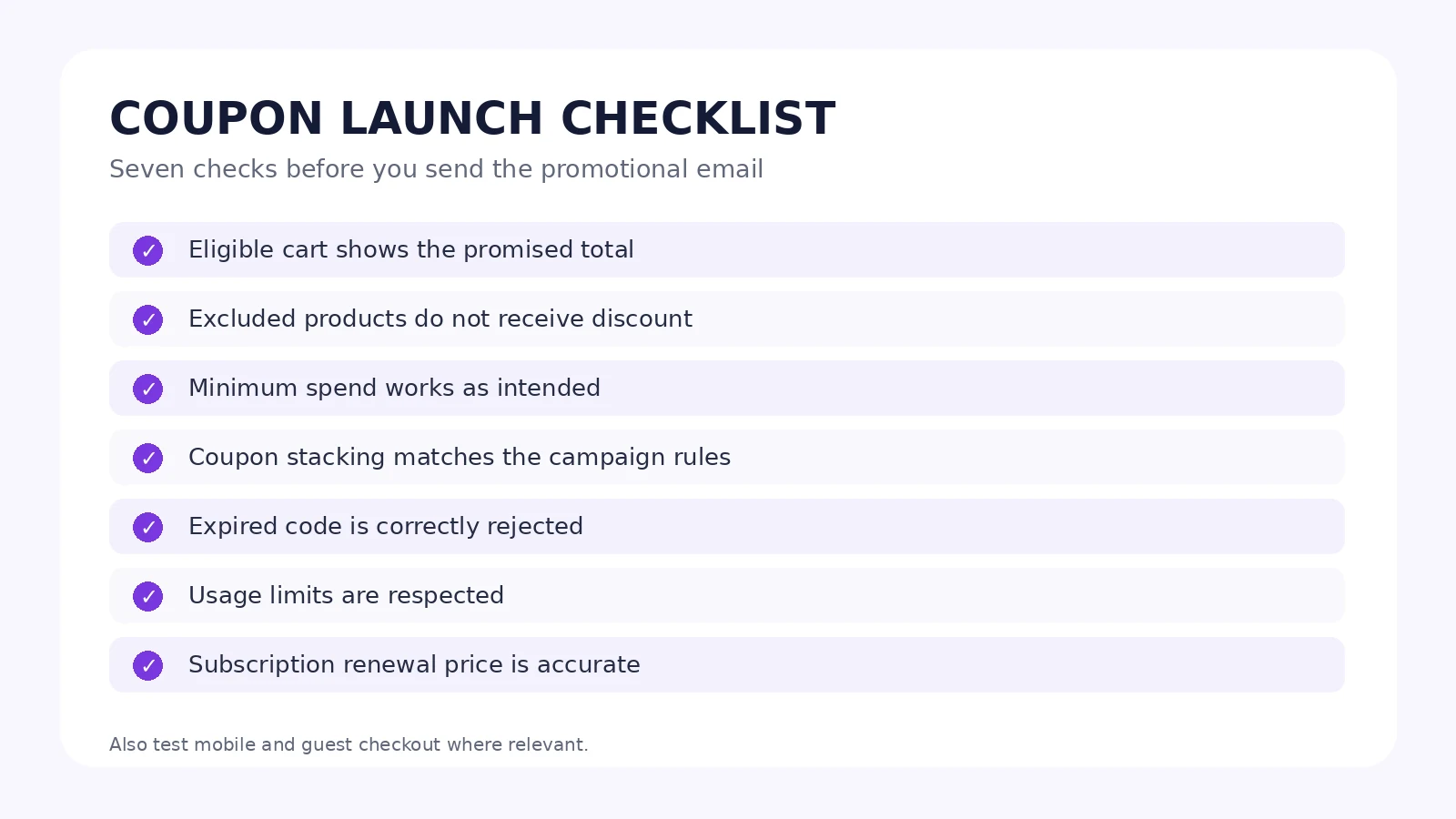
The pre-launch test: seven orders worth attempting
Don’t test a coupon by merely opening the editor and seeing “Active.” The meaningful test happens in checkout.
| Test | What should happen |
|---|---|
| 1. Eligible product, eligible customer | Correct discount applies and final amount matches the offer |
| 2. Excluded product or license | Coupon is rejected or does not discount the excluded line |
| 3. Cart below minimum spend | Coupon follows the configured threshold rule |
| 4. Second coupon entered | Stacking succeeds or fails exactly as promised |
| 5. Coupon after expiry | Code is unavailable and message is understandable |
| 6. Customer over usage limit | Coupon is rejected without an incorrect price |
| 7. Subscription initial payment and renewal | First payment and renewal follow the advertised billing terms |
Add a mobile checkout test and a guest-checkout test if those scenarios are part of your store. If you are using FluentCart’s instant-checkout URL, also test a bad variation ID, expired code, and modal checkout separately. For WooCommerce extensions, test coupon auto-application only after enabling and verifying the specific extension feature.
When a coupon doesn’t work, check these first
“Coupon doesn’t exist.” Check the code for copying errors, ensure it is published or active, and make sure the shopper is on the intended store. Don’t share a demonstration code like SAVE20 as if it’s an active offer.
“Coupon expired.” Check end dates, publication scheduling, server/site timezone, and whether the promotional email went out after the deadline.
“Coupon isn’t applicable.” Check included products, excluded products, categories, minimum spend, sale-item exclusions, user email, and subscription restrictions. Try the simplest eligible cart, then add conditions one at a time.
“Coupon applies, but the total looks wrong.” Compare percentage versus fixed-cart or fixed-product discounts, the number of eligible items, taxes, shipping, and whether another discount is also applied. In WooCommerce, coupon discounts affect eligible product prices and taxes; a product discount does not automatically remove a shipping charge.
“Our email link doesn’t apply the code.” For WooCommerce core, that behavior isn’t built in. For FluentCart, inspect the fluent-cart, item_id, and coupons URL parameters, then check whether you accidentally used modal checkout. Test the real link on a private browser session before sending it.
How to turn a working coupon into a campaign people understand
Once the setup works, write the offer in plain language. A useful coupon announcement answers five questions without sending customers hunting through terms: what is discounted, by how much, who qualifies, when it ends, and what happens on renewal.
A better promotional line is: “Save 20% on eligible single-site licenses with code SAVE20 through the stated campaign deadline. Excludes agency plans. Regular renewal pricing applies.” Only publish that sentence if the underlying coupon and subscription configuration truly match it.
Place the code near the product explanation, not in a distant FAQ. Show the amount the customer will actually pay. If you use an affiliate partner, disclose that relationship according to applicable rules and don’t imply that a normal referral URL is a guaranteed coupon. On WPTopper, a deal listing should reflect a verified live offer, not a code copied from an old promotional email.
Looking for useful products to evaluate before you commit to a purchase? Explore WordPress products and deals on WPTopper. Compare features, licensing, current pricing, and support terms as well as the headline discount.
Frequently asked questions
Can you create WordPress coupon codes for free?
Yes, if you use WooCommerce core, its standard coupon management is included. FluentCart’s documented coupon creation workflow is under FluentCart Pro. Other stores may use different eCommerce platforms or extensions.
Where is the coupon setting in WooCommerce?
First enable coupons at WooCommerce → Settings → General. Then open Marketing → Coupons to create and manage codes. Other plugins can add more tabs or conditions.
Can WooCommerce automatically apply a coupon?
Not through its core coupon feature alone. Automatic application requires an additional extension or a tested customization. WooCommerce’s Smart Coupons documentation describes an Auto apply option provided by that extension.
Can FluentCart apply a coupon using a URL?
Yes, FluentCart documents coupon URL parameters for supported instant checkout links. The code must still satisfy the normal coupon rules, and the documented URL method is not supported with modal checkout.
Can a coupon discount future subscription renewals?
That depends on your commerce and subscription setup. FluentCart Pro documents a recurring-coupon option. In WooCommerce, renewal-coupon behavior depends on the relevant subscription extension and coupon type. Never assume a first-payment discount automatically continues forever.
How do I stop shoppers from combining coupons?
WooCommerce core has an Individual use only restriction. FluentCart provides a Stackable setting. Test the result with two valid codes before saying they’re mutually exclusive in campaign copy.
Leave a Reply