
WooCommerce and FluentCart coupon troubleshooting for real stores
You have checked the coupon twice. The code is correct. The offer is marked active. Your Black Friday email has already gone out. Then someone writes: “I tried three times, and it still says this coupon doesn’t work.”
The tempting response is to send another code. But that creates another problem: you still don’t know why the first one failed. Maybe the buyer chose the wrong license tier. Maybe the basket is below the minimum spend. Maybe a previous discount blocks stacking. Or perhaps the coupon is completely valid, but the customer expects it to reduce shipping or a future subscription renewal when it was never configured to do either.
This guide is for people running WordPress stores with WooCommerce or FluentCart, and for marketers who need to explain a broken offer without asking customers to become unpaid QA testers. We will diagnose what the shopper sees, trace the relevant coupon rules, and separate a genuinely invalid coupon from a checkout display or payment problem. Platform details below come from official documentation; they are not claims that WPTopper tested a particular production installation.
Key Takeaways (TL;DR)
- Start with the customer’s exact error, cart, account state, and time. A rejected code differs from an accepted code with unexpected savings.
- Check expiry, eligible products or plans, spending thresholds, email rules, usage limits, and stacking before blaming plugins.
- Subscription renewals, shipping, tax, auto-apply expectations, and cached checkout totals can make a valid code look broken.
- Reproduce the smallest failing case in staging, then change one variable at a time and document the result.
Quick answer: why is my WordPress coupon not working?
First, capture the exact error, product or license, cart total, customer state, and time of the attempt. Then check the coupon’s status, expiry, product eligibility, spending thresholds, email limits, per-user and overall usage, and stacking restrictions. If the code is accepted but the total seems wrong, inspect how the discount is calculated and whether the customer expected shipping, fees, tax, or subscription renewals to be discounted. Only after you can reproduce the failure should you investigate caching, custom checkout code, plugins, and theme conflicts.
Don’t change six settings at once. One controlled test that changes one variable can tell you more than an hour of guessing.
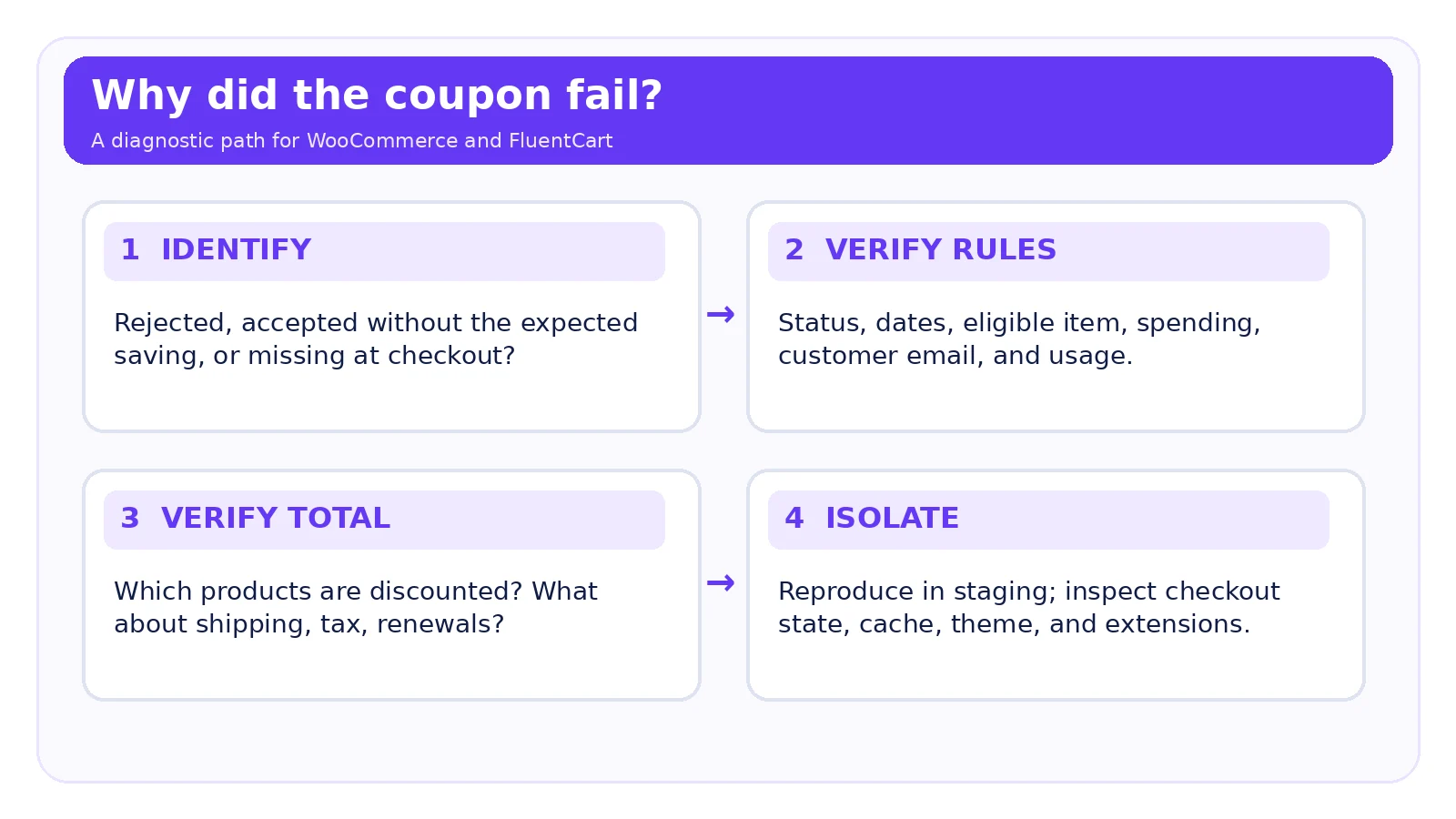
1. Start with the symptom, not with the coupon editor
Three shoppers can say “the coupon is broken” and mean entirely different things:
- Rejected: The checkout explicitly says the code is invalid, expired, already used, or ineligible.
- Accepted, but no expected saving: The coupon appears in the order summary, but the total doesn’t drop by the expected amount.
- Missing or inconsistent: The customer cannot find the coupon field, the coupon link doesn’t prefill the code, or the discount disappears after they change their cart or move to payment.
These aren’t just word choices. They tell you where to begin. A rejected code points first to validation rules. A successful code with unexpected math points to discount scope, taxes, shipping, or subscription treatment. An intermittent field or changing total points more strongly toward the checkout implementation, cart state, caching, or competing extensions.
Ask for the smallest reproducible example. “Single-site annual plan, quantity one, code SAVE20, signed-out browser, 7:40 p.m. Eastern, error shown after pressing Apply” is valuable. “It doesn’t work” is not. Request an appropriately redacted screenshot of the error if needed; never ask the customer to send a password, card number, full payment details, or session token.
A five-minute first response for support teams
Recreate the customer’s exact cart in a permitted staging environment or safe test checkout. Check the right currency and any relevant billing country. Then answer three questions: does this code exist and have the intended status, does this exact cart qualify, and does the checkout calculate the published saving correctly? If you cannot reproduce the failure, compare the customer’s billing email, previous coupon use, signed-in state, and any extensions that alter prices or checkout flow.
2. Check whether the coupon is actually enabled and within its dates
A saved coupon isn’t necessarily usable. In WooCommerce, coupon availability depends on its published state and configured expiry or publication schedule. In FluentCart Pro, the documented coupon screen has statuses and a Schedule panel with explicit start and optional end date/time. A coupon can exist in the list yet be disabled, outside its schedule, or expired.
With an international campaign, write down the store’s configured time zone and the marketing email’s promised deadline. “Ends tonight” is ambiguous across countries. A promotion scheduled to end at 11:59 p.m. in one time zone may already be closed for a shopper elsewhere, or still active after their local midnight. Don’t assume the customer’s device time determines the rule.
If the coupon expired as advertised, don’t silently extend it just to satisfy a complaint. Offer the customer clear current pricing, explain the deadline, and let an authorized person decide any exception. If the published deadline is wrong because your settings don’t match your campaign brief, pause the affected promotion and correct the discrepancy transparently.
3. Product, variation, and license restrictions are often the real culprit
Here’s a typical WordPress software problem. Your homepage advertises 25% off the plugin, but the coupon was configured for annual personal and business plans only. The buyer chooses a lifetime agency license and sees an invalid-code message. The system may be enforcing the rules correctly; the advertisement is incomplete.
WooCommerce core supports allowed and excluded products and categories. FluentCart Pro documents product and category eligibility rules. Both require your actual cart to satisfy the offer conditions. A variation, product type, or license package represented as a separate product in your store can be treated differently from what a marketer mentally groups under one product name. Test the precise item identifier, not just a visually similar product card.
For a physical store, watch for an excluded sale item in a mixed cart. WooCommerce has a built-in Exclude sale items rule, and its documentation notes special behavior for cart-level discounts when sale items are added. For a digital store, check whether an add-on or lifetime license is excluded from the promotion while the annual plan qualifies.
Useful test: Create one minimal cart containing only a clearly eligible product. Confirm the code works. Add the suspect item. If the coupon then fails or changes, inspect product, category, variation, sale status, and mixed-cart handling before troubleshooting unrelated plugins.
4. Your basket may not meet the spending rule you advertised
A threshold coupon can be perfectly valid but unusable on an order that falls below its minimum or above its maximum. Imagine a fictional $15-off coupon for orders above $100. A shopper removes an add-on and the cart drops to $96. The code should no longer qualify, even if it worked one minute earlier.
This gets more confusing when price changes occur elsewhere: a sale price, another coupon, a product bundle rule, or a change of quantity can alter what the threshold checks. WooCommerce’s official documentation describes its minimum-spend calculation as using cart subtotal plus tax; do not blindly assume the relevant number is the final amount including shipping, or copy its formula into FluentCart. Verify the specific platform and extension behavior with a controlled cart.
Show the actual eligibility threshold near the offer. “$15 off eligible orders over $100” is more useful than a graphic showing only “SAVE $15.” If shipping or taxes are excluded, make that clear as well.
5. Billing email, guest checkout, and prior use can change the result
A coupon can work for a marketer testing with their admin account and fail for the customer who received it. In WooCommerce, Allowed Emails are checked against the billing email. It is not enough for a person merely to have the coupon in their inbox; they must meet the configured address restriction at checkout. FluentCart Pro likewise documents email-based restrictions, per-user limits, and total usage limits.
Test three realistic customer states: an eligible guest with the correct billing address, a signed-in existing buyer, and a customer who has already redeemed the coupon. Check whether the contact list used for your campaign exactly matches the restrictions actually entered in the store. Plus-addressing, alternate inboxes, and account-versus-billing-email differences can all create legitimate mismatches.
Do not treat email restrictions as a universal first-time-buyer guarantee. A billing-email match is only one control. If the offer truly must be first-purchase-only or limited to a particular account role, confirm the current checkout system has a mechanism to enforce that claim, possibly through a compatible extension or tested customization.
Does “0” mean zero uses or unlimited uses?
The details are platform-specific. FluentCart’s documentation explicitly states that 0 means unlimited for total usage and per-user usage. In WooCommerce, use the field’s documented behavior and its current UI rather than importing that assumption from another plugin. A marketer copying settings between platforms can accidentally open a discount to everyone or block a valid buyer.
6. Check coupon stacking before you blame the customer
Say the store automatically displays a 15% public promotion and the buyer enters a private 20% code. What happens depends on your rule setup. In WooCommerce, Individual use only blocks combining the coupon with another coupon; other price adjustments and extensions can affect results. FluentCart Pro exposes a Stackable control. Whether two offers can coexist is a policy decision that must match what the checkout can enforce.
Do not assume two 20% coupons create 40% off. If two percentage discounts are applied sequentially, a fictional $100 product could become $80 and then $64, producing a 36% effective reduction. But that is merely an illustration of possible sequential arithmetic, not a statement that WooCommerce or FluentCart always calculates stacking that way. Actual totals depend on the platform’s discount allocation, applicable items, ordering, and extensions.
The cleanest test compares four carts: no coupon, code A alone, code B alone, and both together, using identical products and customer state. Record the total for each. If policy says the offers cannot combine but the store permits it, that is a configuration issue worth fixing before the campaign expands.
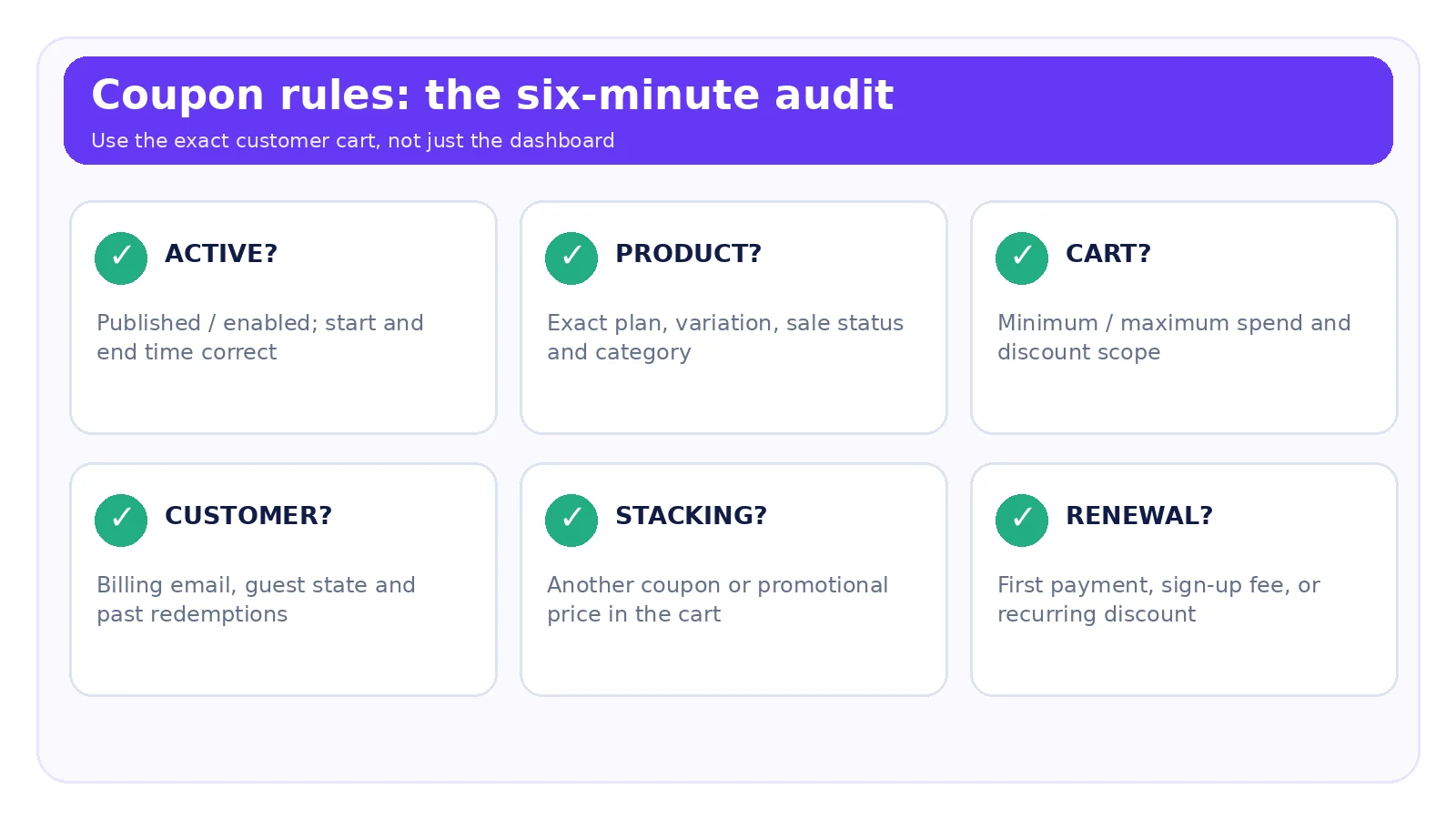
7. The coupon may be applied correctly but discount a different amount
A successful validation message isn’t proof that the buyer’s entire order should fall by the advertised percentage. WooCommerce’s documentation says ordinary coupons apply to item prices and do not discount shipping by default. Free shipping requires the relevant coupon and shipping configuration. Taxes are calculated with discounts considered, so tax-inclusive displays and rounding may cause totals that don’t match a quick mental calculation on the grand total.
Consider a fictional cart with $100 in eligible goods and $12 shipping. A 20% product discount reduces eligible merchandise by $20. If shipping isn’t covered, the buyer may still owe $80 for products plus $12 shipping, before any relevant taxes or fees. The total isn’t automatically $89.60 (which would be 20% off the entire $112), and a code that only discounts a single item changes the result again.
Before telling support that the coupon is broken, reconcile four lines: eligible merchandise, discount allocation, shipping, and tax. Save a sample calculation approved by the store’s pricing owner. And if your marketing materials imply shipping is included, update the copy or configure a legitimate free-shipping offer.
8. Subscription coupons need their own diagnosis
Subscriptions are especially easy to miscommunicate because “20% off the plugin” could mean 20% off today, 20% off the sign-up fee, or 20% off recurring renewals. Those are different commercial promises.
WooCommerce Subscriptions, an extension separate from WooCommerce core, provides recurring-product and sign-up-fee coupon types. Its documentation says ordinary cart and product coupons generally discount the initial payment; recurring-product coupons affect renewals. If a subscription’s first payment is $0 because of a free trial or synchronized billing schedule, an ordinary initial-payment coupon may have nothing to discount. A shopper can understandably conclude that the code failed, even if the billing system applied its rules correctly.
FluentCart Pro documents a Make this coupon recurring setting for relevant subscription promotions. Whether the deal should affect every renewal is a pricing decision, not a technical default you should enable to silence a complaint. Check the exact billing summary for the first charge, future charges, and the actual duration of the discount.
Never “fix” a first-year-only coupon by changing it to discount every renewal without approval. That changes the customer contract and future revenue, potentially for years.
9. Is the checkout supposed to apply the coupon automatically?
WooCommerce core does not auto-apply ordinary coupon codes; its documentation tells stores to share codes customers enter in the cart or checkout. If your email says “We already applied your discount,” but the store runs only the core coupon workflow, the expectation is wrong. An auto-apply extension, custom code, or a verified alternative offer method is required for that experience.
FluentCart’s supported coupon-bearing checkout links can reduce manual entry in compatible instant-checkout flows, but link parameters are not permission to bypass restrictions. Check the exact supported flow and whether the modal checkout supports that mechanism in your installed setup. A link with a coupon parameter is not proof the coupon validated.
A missing coupon box may also be a deliberate design decision, especially on a one-product checkout. Confirm how the checkout was built and what offer method that page supports before treating the missing field as a software defect.
10. If the issue happens only sometimes, examine cart state and caching
A coupon that succeeds in one browser and fails in another invites the classic “clear your cache” response. Sometimes that helps, but it is not the diagnosis.
First verify whether the carts really match: same selected product, quantity, country, currency, login status, applied coupons, and billing email. If they do, reproduce the issue in a new private browser session. Compare classic and block checkout if your store supports both and uses different implementations. Then inspect whether full-page cache, a CDN, aggressive optimization, stale JavaScript, or an extension interferes with cart state or recalculation.
WooCommerce’s troubleshooting documentation notes that cache and plugin/theme conflicts can cause checkout pages to behave unexpectedly. Cart and checkout pages generally need dynamic, customer-specific behavior; consult your hosting/caching configuration rather than blindly purging the entire site during peak sales. A stale browser display can be different from a server-side rejected coupon, so capture what the server accepted as well as what the shopper saw.
For high-traffic stores, make cache-policy changes in staging and review them with the responsible developer or host. Never disable security controls or customer-session protections just to make a sale banner work.
11. How to diagnose a plugin or theme conflict safely
When the rules check out but the failure is reproducible, conflicts become a stronger possibility. WordPress checkout customizations, price filters, bundled-product extensions, custom themes, and JavaScript optimization can all affect the order in which cart information is calculated or displayed.
WooCommerce’s official conflict-testing guide recommends a backup and, preferably, a staging clone. On staging, record current versions, reproduce the issue, switch to a default theme, and isolate extensions systematically. Bring them back one at a time until the behavior returns. Do not deactivate payment, licensing, or security plugins one by one on a busy production checkout; you could interrupt real orders or expose customers to avoidable failures.
If the issue depends on a specific page template, try the actual checkout page rather than testing the admin coupon editor again. If a custom checkout plugin is involved, verify its compatibility with the active WooCommerce version and block/classic checkout type. For FluentCart, follow its supported checkout configuration and consult official support if you cannot reproduce a safe fix in staging.
What to collect for a developer or vendor support ticket
Provide the coupon rule summary without publishing a sensitive private code; product IDs/variation or license; redacted error text; customer state; cart items and relevant totals; current plugin/theme versions; checkout type; timezone; reproduction steps; staging results; and whether the failure persists after a controlled conflict test. Include sanitized logs when relevant. That package is substantially more actionable than “coupon plugin broken, please fix.”
12. Two platform-specific checklists
WooCommerce: a reliable order for checking coupon failures
- Open Marketing → Coupons and confirm the exact code exists and is published. Check the coupon’s expiry or schedule against the store’s clock.
- Review General for discount type and amount; do not confuse a fixed-product discount with a cart-wide percentage.
- Review Usage restriction: minimum/maximum spend, product/category inclusion/exclusion, sale-item exclusion, individual-use-only, and allowed emails.
- Review Usage limits: overall, per-user, and item limits. Recreate a previously redeemed customer case if appropriate.
- Rebuild the customer’s cart with the exact variation and billing email. Reconcile eligible merchandise, tax, and shipping rather than only the final grand total.
- If subscriptions are involved, inspect the WooCommerce Subscriptions coupon type, first-payment amount, renewal amount, and any free trial or sign-up fee.
- If expected behavior requires auto-application, identify the exact extension or custom flow; core coupons require customer entry.
- If all rules match but behavior still fails, use documented staging-based cache and plugin/theme conflict testing.
FluentCart Pro: check scheduling, eligibility, and stacking together
- Go to FluentCart Pro → Coupons per the current product documentation; confirm code, status, and dates.
- Inspect the Schedule start/end fields and the store’s timezone.
- Check product/category and spending restrictions against the actual cart; verify buyer-email conditions.
- Check Total Limit and Per User Limit. Remember that the documentation uses
0for unlimited. - Review Stackable and the other codes or automatic discounts already affecting the purchase.
- Confirm whether the coupon is meant to discount only the initial subscription payment or recur, and inspect the actual first-charge and renewal display.
- For coupon-bearing links, test the supported checkout flow and verify the result at checkout rather than assuming the URL parameter succeeded.
- Reproduce with a clean, known-eligible test cart before escalating to theme, checkout, or integration troubleshooting.
These are documentation-grounded steps, not screen-by-screen evidence from a live FluentCart installation. Admin labels and available features can vary by installed version and license.
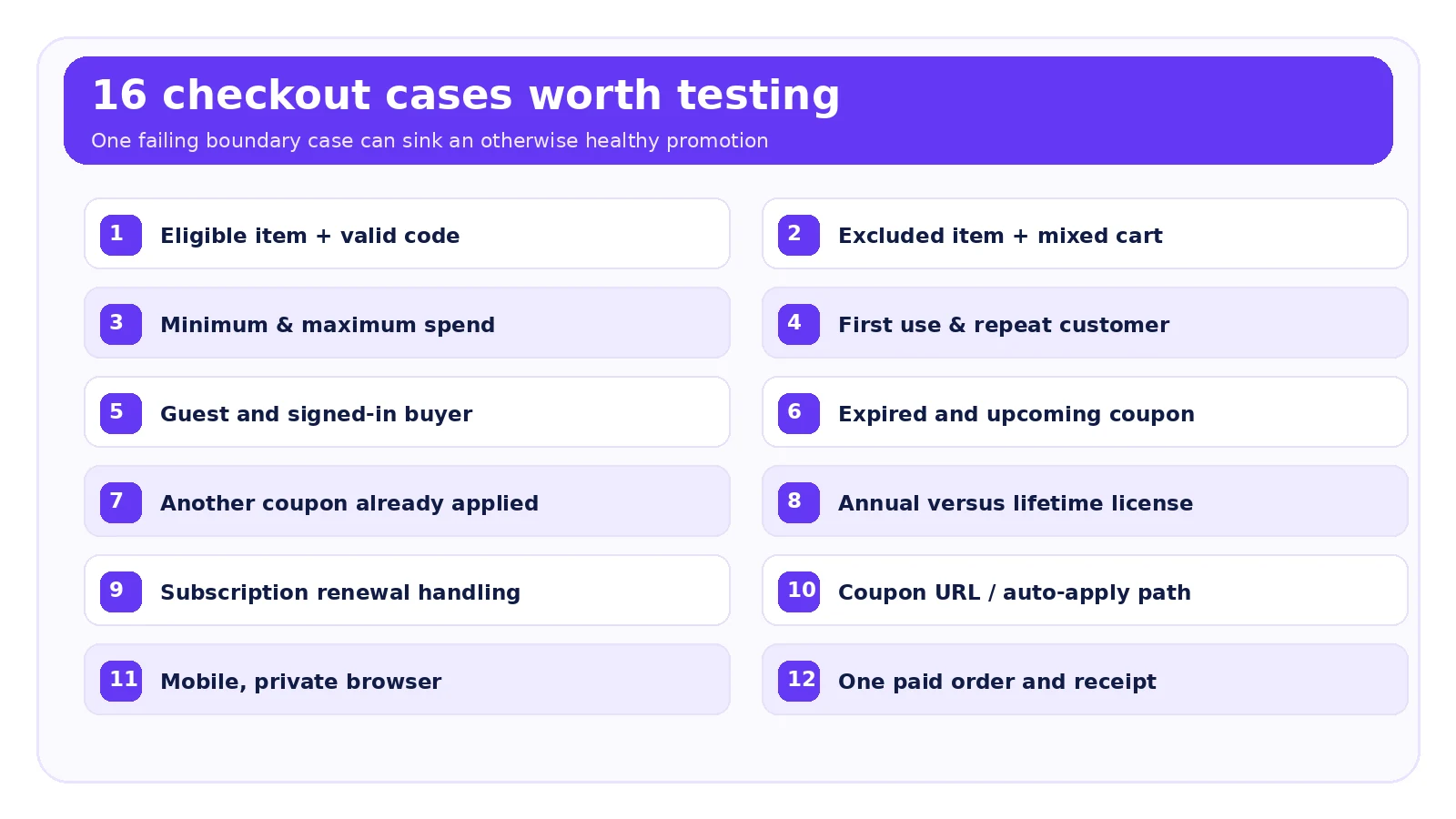
13. A coupon failure test matrix you can use before sending an email
Run these scenarios in a staging environment or a permitted payment sandbox. Record expected result, actual result, a screenshot, plugin version, and owner of any failure. Don’t use a real customer’s email or card data in a demo.
| Test | Expected result |
|---|---|
| Eligible product and correctly configured code | Advertised discount applies to the right item or total |
| Excluded product alone | Correctly rejects or excludes discount |
| Eligible and ineligible items together | Discount matches actual rule and display |
| Cart below minimum spend | Coupon rejects with understandable reason |
| Cart above maximum spend, where set | Coupon rejects as configured |
| Previous-use customer or email | Per-user rule enforced |
| Total usage limit reached | Coupon does not over-redeem |
| Expired coupon / not-yet-active coupon | Accurate availability message |
| Existing second coupon | Stacking policy enforced |
| Guest checkout and signed-in buyer | Same intended eligibility rules |
| Annual plan versus lifetime license | Correct product/plan eligibility |
| Subscription initial charge and next renewal | Correct treatment disclosed |
| Public coupon link or auto-apply flow | Validated offer actually appears |
| Mobile and private browser session | Dynamic checkout remains consistent |
| Payment succeeds after discount | One order, one correct charge, correct receipt |
| Code removed or cart updated | Totals recompute correctly |
Important distinction: A test passing once in your administrator browser does not establish that every customer will see the same result. The point of the matrix is to exercise the specific boundary cases your campaign actually promises.
14. What to tell customers while you’re fixing the issue
A shopper needs a useful answer, not a paragraph about plugin conflicts. A short response could say:
Thanks for reporting the coupon issue. We’re checking the eligibility rules for the exact plan you selected. Please share the product or license name and the error message, but no payment or login details. We’ll confirm whether the offer applies to your order and provide the correct next step.
Once investigated, say what happened. If the coupon excludes lifetime licenses, explain that and link to the eligible plan. If the campaign page was misleading, correct the page before telling more customers to try. If a technical failure affected qualifying shoppers, use your approved customer-service policy to handle the offer fairly. Don’t promise a new percentage or manual refund without authorization.
For a deal publisher such as WPTopper, whose links may point to vendor checkouts, the responsibility is slightly different. Confirm the vendor’s published terms, mark a failing or expired code as unverified, remove the “active deal” claim, and point readers to the vendor’s current pricing until the offer is actually rechecked. An outbound click is not evidence that the coupon worked.
15. Stop the same problem before the next sale
The strongest fix may not be another coupon setting. If support receives repeated “invalid code” tickets, inspect the promise that sent people to checkout. Did a banner say 30% off every plan when the discount covered annual plans only? Did an email say the code was auto-applied even though customers had to enter it? Did the timer use a different time zone from the coupon schedule? Did the deals directory leave a November offer visible in January?
Build a small coupon release checklist into the campaign process. Before launch, a pricing owner approves the offer sheet; a store operator configures the rule; someone else runs the boundary tests; marketing verifies the promise on every channel; support receives the final terms; and a named owner is responsible for turning the promotion off on time.
That is less exciting than a giant “SAVE 40%” banner. It also means fewer buyers discovering your QA gaps at the moment they are trying to pay you.
The coupon isn’t the problem until you’ve checked the promise
A coupon can be valid in the admin, invalid for one cart, correctly applied to only certain items, or perfectly fine while an outdated checkout displays the wrong state. Each case needs a different response. Start with the customer’s symptom and the exact offer rules; test the smallest case that reproduces it; and change the platform only when the evidence points there.
If you’re deciding which WordPress products are worth buying, use WPTopper to explore relevant tools and buying guidance. Verify the vendor’s current license, renewal, and offer details before purchasing. For store owners, the rest of this WPTopper series covers coupon setup, eligibility policies, discount economics, checkout presentation, and measuring whether a promotion actually helped.
Frequently asked questions
Why does WooCommerce say my coupon is invalid when it is published?
Published status is only one condition. Check expiry, spending thresholds, excluded products or categories, email restrictions, usage limits, sale-item rules, and incompatibility with other coupons. Recreate the exact cart and buyer context before changing a setting.
Why does a coupon work for me but not for my customer?
You may be testing a different billing email, cart, license variation, account state, or prior-use history. Compare those fields and the coupon’s customer restrictions. An admin test does not prove every buyer qualifies.
Can a coupon apply but not reduce shipping?
Yes. WooCommerce’s standard coupons discount cart items and do not automatically reduce shipping charges. A free-shipping coupon must be supported by the store’s shipping configuration. A similar-looking total can also reflect taxes, fees, and exclusions.
Does WooCommerce automatically apply coupons?
Not with WooCommerce core’s ordinary coupon workflow. Auto-apply behavior requires a compatible extension or customized implementation, or another tested promotion method. Confirm what your actual checkout supports before promising it in an email.
Why doesn’t my WordPress coupon discount the subscription renewal?
In WooCommerce Subscriptions, ordinary cart/product coupons normally apply to an initial payment, not automatic future renewals; recurring coupon types exist for renewal discounts. FluentCart Pro documents its own recurring-coupon option. Confirm which payment the offer actually covers and show the renewal terms before purchase.
What does a FluentCart coupon usage limit of zero mean?
Its official documentation says 0 means unlimited, both for the overall number of uses and the per-user limit. That setting does not mean the coupon is unavailable. Verify other eligibility and schedule rules if the code fails.
Can caching cause discount totals to look wrong?
Caching or frontend optimization can contribute to stale checkout displays, though you should first verify the cart, buyer, and coupon rules. Reproduce in a clean browser and staging environment, then review checkout caching and theme/plugin conflicts without experimenting on live customers.
What should I do when a coupon stops working during Black Friday?
Pause affected emails or promotional claims if many eligible buyers are being misled. Identify the precise failing cart, restore a reliable checkout or accurate offer terms, and communicate clearly with affected customers. Retest before announcing that the problem is solved.
Sources and further reading
- WooCommerce — Managing Coupons
- WooCommerce — How to Test for Plugin and Theme Conflicts
- WooCommerce — Subscriptions Coupons
- WooCommerce — Subscription Renewal Process
- WooCommerce — Pages Not Displaying
- FluentCart — Creating and Managing Coupons
- FluentCart — Adding Coupons
*Research note: The coupons, example prices, customer messages, and checkout scenarios in this article are illustrative. We researched official vendor documentation but did not perform hands-on tests in an authorized WooCommerce or FluentCart production store.
For the offer behind this workflow, review WordPress discount strategy.
Leave a Reply