
You wrote the email. The discount looks generous. The landing page is ready. And someone on the team has already scheduled the social posts.
Then a customer combines your 20% holiday code with an older $25 loyalty coupon. Another uses it on the agency license you meant to exclude. A third buys an annual subscription and reasonably assumes the discounted amount will apply to renewals.
Suddenly, the problem isn’t getting people to use the coupon. It’s explaining why the coupon did something nobody intended.
A coupon is a small set of instructions attached to a potentially large number of orders. Before you share one, those instructions deserve the same attention as your headline, pricing page, and checkout. This guide explains the rules to decide, how WooCommerce and FluentCart handle them, and the tests that can save you from a very public mistake.
Quick answer: A launch-ready coupon needs a defined discount type, eligible products and customers, clear stacking behavior, spending thresholds where appropriate, a redemption policy, accurate dates and timezone, subscription-renewal rules, understandable customer-facing terms, and a tested checkout. The right restrictions protect the offer without making legitimate buyers jump through hoops.

Key Takeaways (TL;DR)
- Write the coupon policy before launching: exact products and plans, audience, spending thresholds, and exclusions.
- Decide whether codes can stack and test the combined result, not just each coupon in isolation.
- Check total and per-customer usage, dates, timezones, and subscription renewals. FluentCart documents 0 as unlimited use.
- Run boundary cases in checkout and show customers the important conditions before they try to pay.
A coupon code is a promise, not just a percentage
Take an example that will follow us through this article. You sell a WordPress plugin with a $99 single-site license and a $299 agency plan. You want to offer 20% off the single-site plan to newsletter readers for one week. The promotion should not apply to agency plans, cannot combine with other coupons, and must not discount future annual renewals.
Your coupon might be called WELCOME20. That is a demonstration code, not a live WPTopper deal. Yet the code name is the least important part. The real offer is the contract hiding behind it: who qualifies, what gets cheaper, how much can be saved, and when the privilege ends.
Write that contract in plain English first:
Newsletter readers can save 20% on an eligible single-site license with WELCOME20 during the published campaign window. Agency plans and other coupons are excluded. Standard renewal pricing applies.
If your checkout cannot enforce one of those sentences, don’t publish the sentence as written. Change the offer or implement and test the necessary restriction first.
Rule 1: Define the discount type before anyone sees the banner
A percentage discount and a fixed discount behave very differently when carts contain multiple items. In WooCommerce core, a fixed-cart coupon takes a set amount off the eligible cart, while a fixed-product coupon can take that amount off each eligible item. Three qualifying $40 items with a $10 fixed-product coupon could mean $30 total savings, not $10. WooCommerce documents these as distinct coupon types.
For a WordPress plugin with several license tiers, decide whether the code reduces the whole cart or only a particular product. For a store selling physical goods, also decide how quantities affect the offer. A promotion that looks fine with one item may behave differently with five.
Before launch, answer: Is the value percentage-based, cart-wide, per-item, or tied to one specific product? What is the largest valid discount you would be comfortable honoring?
FluentCart Pro documents percentage and fixed coupons and an optional Max Discount Amount, which helps constrain percentage offers on expensive orders. WooCommerce core’s ordinary percentage coupon does not expose that exact maximum-discount field in the documented basic setup; don’t assume matching controls exist just because the plugins both support coupons.
For the format decision behind these rules, see our comparison of coupon codes, price cuts, and bundles.
Rule 2: Specify the exact products, variations, and license tiers
One of the easiest mistakes is to create a code and forget to narrow its scope. WooCommerce documentation notes that leaving its Products and Exclude Products settings empty allows the coupon across the store. FluentCart Pro likewise offers product and category inclusion and exclusion controls.
For our WELCOME20 example, targeting the single-site product explicitly is safer than creating a broad store coupon and hoping nobody applies it to the agency plan. Check whether the license tiers are separate products, variations, or subscription options in your own setup. Product structures vary, and a restriction that names a parent product may not cover every variation the way you expect.
The same principle applies to bundled products. If a bundle already contains discounted items, does the extra coupon reduce the bundle itself, its contents, or both? That depends on the commerce system and any bundle extension. Test with the real configured bundle, not a generic test product.
A useful practice: For each coupon, keep a small table listing included products, excluded products, and the reason. It makes future editing much easier, especially when product names change.
Rule 3: Choose whether customers can stack discounts
Stacking is where a modest promotion can quietly become a much larger one.
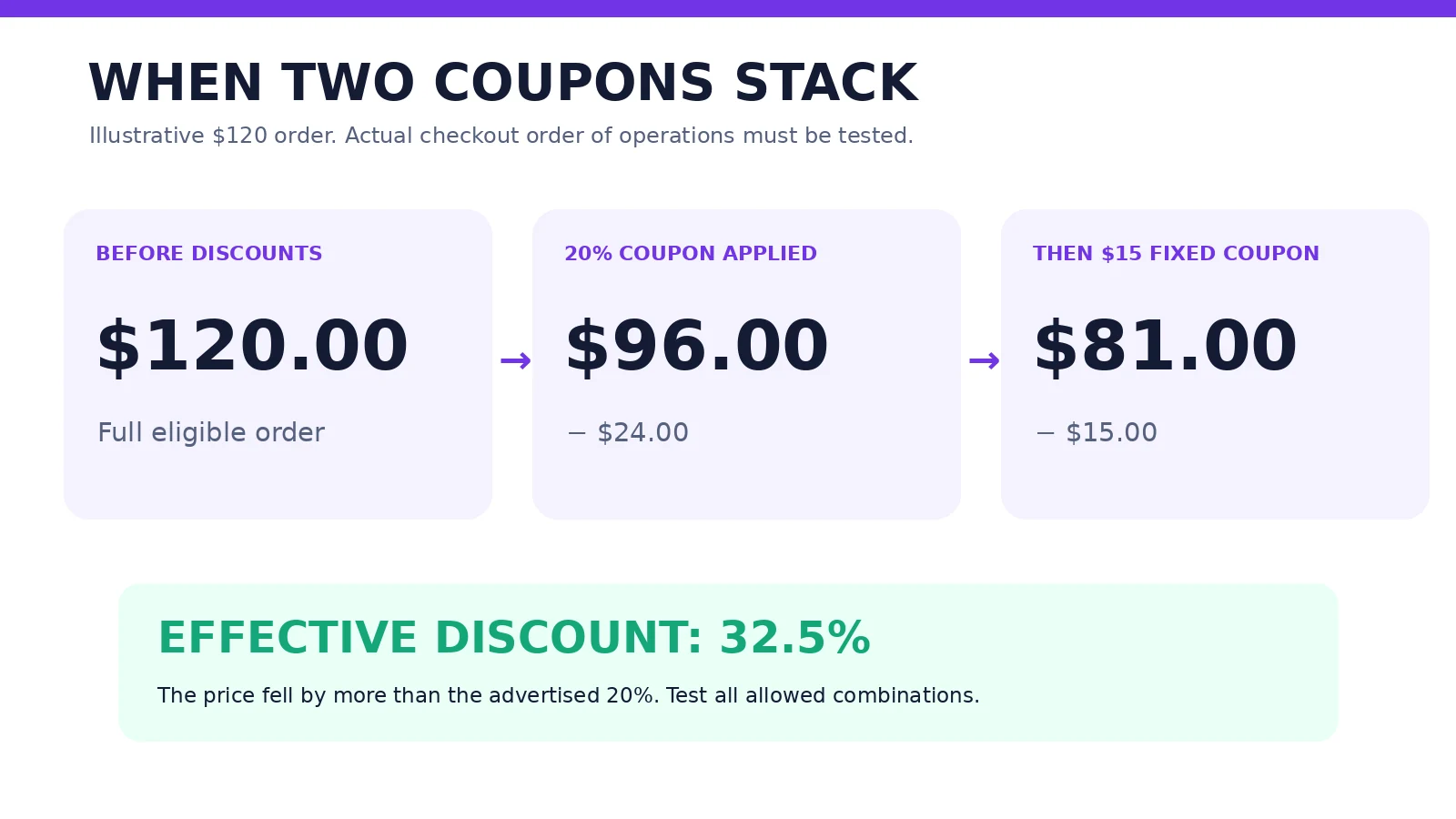
Imagine a $120 eligible order. Your site has a 20% holiday code and an old $15 loyalty coupon. If both apply sequentially in that order, the price could fall to $81: $120 minus $24 minus $15. That’s an effective 32.5% discount, not 20%. If the system applies the fixed coupon before the percentage, the result could be $84 instead. These numbers illustrate why order of operations matters; they do not claim that WooCommerce or FluentCart always calculates coupons in one fixed order.
WooCommerce core includes Individual use only, designed to prevent the selected coupon from being combined with other coupons. FluentCart Pro documents a Stackable Yes/No setting. Those controls solve the basic policy, but you still need to test how coupons interact with sale prices, product-specific rules, bundles, and additional discount extensions.
There isn’t one right answer for every store. A loyalty coupon might be intentionally stackable with free shipping, while a steep Black Friday discount probably shouldn’t be combined with last month’s signup offer. Your policy should reflect the economics, not the default setting.
Before launch, answer: Can the customer use another code? Can they use it on an already discounted product? If two valid discounts are permitted, which one applies first and what final total should appear?
For the financial tradeoffs behind a larger offer, read how much to discount a WordPress plugin or theme.
Rule 4: Set minimum and maximum spend carefully
Minimum-spend requirements can stop tiny orders from receiving a disproportionate fixed discount. They can also frustrate customers if the threshold isn’t explained. If you promise $15 off purchases over $100, someone with $99 of eligible products should be able to understand why the coupon fails without contacting support.
WooCommerce’s documented core restrictions include both Minimum spend and Maximum spend. FluentCart Pro documents minimum and maximum spend amounts too. But eligibility calculations may be affected by taxes, excluded items, shipping, other coupons, and product types. Check the amount the storefront uses, rather than assuming it matches the visually largest number in the order summary.
For example, suppose you want a $15 fixed coupon for orders over $150. The actual question is whether shoppers are adding useful products or merely raising the total in a way that leaves you less profitable. Minimum spend should serve a clear business objective, not exist just because the field is available.
Before launch, answer: What amount counts toward the threshold, and does your public copy explain it in language the buyer can understand?
Rule 5: Distinguish a total usage limit from a per-customer limit
These are two separate controls. A total limit caps redemption across everyone. A per-customer limit restricts how often one customer is allowed to redeem. WooCommerce core documents both, plus a quantity-related limit that applies under specific product restriction conditions.
FluentCart Pro has Total Limit and Per User Limit fields, but there is an easy-to-miss detail: its documentation states that 0 means unlimited. Entering zero because you think it means ‘block all usage’ would do the opposite.
Consider a promotion advertised as ‘the first 100 customers get 20% off.’ You need to define what ‘first 100’ means. Is it 100 successful orders, 100 unique customers, or 100 issued codes? What happens with cancelled or refunded orders? A usage cap may behave differently when multiple shoppers check out nearly simultaneously. Don’t promise a precise limit without testing the relevant order flow and checking how your plugin counts usage.
Also avoid treating a per-user usage limit as complete fraud prevention. Guest shoppers can present different identifiers, and email addresses are not reliable proof that two orders belong to different people. Stronger identity or household-based restrictions may need an extension, account rules, manual review, or customer-support policy.
Before launch, answer: How many redemptions are allowed in total, how many per buyer, and how will you handle refunds, failed payments, and simultaneous purchases?
Rule 6: Don’t confuse an email restriction with verified customer identity
An ‘Allowed Emails’ field is useful when you want to send a code to a known address. WooCommerce checks its documented email restrictions against the billing email; FluentCart Pro also documents restrictions by email address.
That is not the same as a confirmed first-time customer check, an identity-verified membership, or a guarantee that a coupon will never leak. Someone may forward the email. A guest may use another address. A customer could also use a different billing email legitimately.
If your offer is genuinely restricted to new purchasers, verify that your checkout or installed extension has an actual first-order eligibility condition. Don’t announce ‘new customers only’ simply because you plan to email a list of new subscribers. The distribution channel and the enforcement rule are two different things.
Likewise, avoid using IP-address rules as a simplistic answer to abuse: offices, families, coworking spaces, and mobile networks share IPs. Some advanced WooCommerce coupon-restriction extensions offer additional checks involving addresses or IPs, but those are extension features, not guarantees of identity and not part of the standard core coupon screen. Handle any customer-data checks lawfully and proportionately.
Rule 7: Check which subscriptions and renewals get discounted
This rule matters especially for WordPress plugins, themes, hosting, memberships, and any other recurring product.
A customer sees 20% off and may assume that price applies for the life of the subscription. You may have intended it only for the first payment. That difference needs to be explicit in both the checkout setup and promotional language.
WooCommerce Subscriptions adds recurring-product and signup-fee coupon types beyond WooCommerce core. Its documentation says regular cart and product coupons generally discount only the first subscription payment, while recurring-product discounts can affect renewals. Limited recurring coupons can run for a defined number of payments. These controls belong to the subscriptions extension and can interact with trials, signup fees, synced billing, and renewal methods.
FluentCart Pro documents a Make this coupon recurring option. When enabled, the discount applies to recurring billing cycles. Turning it on for a one-year welcome offer could turn a temporary acquisition discount into an ongoing commitment.
For our WELCOME20 example, confirm the customer pays the discounted amount today and that the renewal follows the clearly advertised normal price. Don’t just look at the first checkout total. Inspect the subscription record and, where your testing environment permits, simulate the renewal.
Before launch, answer: Does the code affect the first payment, signup fee, next renewal, a fixed number of payments, or every renewal? What exact recurring amount does the buyer see before paying?
For the step-by-step setup in WooCommerce and FluentCart, see our WordPress coupon creation guide.
Rule 8: Test the dates, timezone, and campaign handoffs
Time-limited promotions can fail even when the discount value is correct. A coupon may be published immediately when the email says ‘starts Friday.’ The end time may use the WordPress site’s configured timezone while the marketing team writes in a different timezone. A reminder email might go out after the code expires.
WooCommerce core documents an expiry date and the option to schedule the coupon’s publication date. FluentCart Pro documents explicit Start Date & Time and End Date & Time controls. These are not identical interfaces, so don’t copy settings from one platform into instructions for another without checking.
Write campaign times using a named timezone in your internal brief. Test just before and after the start boundary, just before and after expiration, and through a real promotional link. Also review any cache layer or scheduling service involved in showing the banner. A coupon expiring is one event; removing every outdated claim that it’s still active is another.
If you extend a promotion, update every relevant landing page, email follow-up, deal listing, and countdown. Don’t use a timer that quietly resets for each visitor and imply the deal is ending when it is not.
Rule 9: Make sure the coupon actually changes the expected total
A coupon that appears to apply is not necessarily discounting what the customer thinks it will. Taxes, shipping, excluded products, quantities, and other offers can affect the final amount.
WooCommerce documents that coupons discount product prices before tax calculations and do not ordinarily discount shipping fees. A free-shipping offer needs appropriate shipping-method configuration. A $100 product order with $10 shipping isn’t automatically $0 due just because a coupon covers the products in full.
Test with screenshots or order notes showing the before and after total, not only whether the code shows ‘Applied.’ For a fixed-product coupon, include more than one eligible item to catch per-item discounts. For percentage offers, test the most expensive eligible product, not just the cheapest. If there’s a maximum discount cap, test an order high enough to reach it.
The support team should have a short answer ready for common scenarios: why tax changed, why shipping remains, why a sale item is excluded, and why a customer with a mixed cart sees a smaller-than-expected deduction.
Rule 10: Write customer-facing terms people can understand
Try reading your offer aloud to someone outside the marketing team. Could they tell you the qualifying product, exact discount, expiry, stacking rule, and renewal treatment without asking another question?
Here is an example of promotional copy that carries its weight:
Use WELCOME20 to save 20% on eligible single-site licenses through the stated campaign deadline. Excludes agency plans and other coupon codes. Standard renewal pricing applies.
For a real campaign, use your verified deadline and timezone. WELCOME20 is a fictional teaching example, not a redeemable WPTopper offer.
Put critical conditions beside the offer. Don’t hide the only renewal disclosure in a footer. Avoid unverified ‘lowest ever’ claims and artificial urgency. Coupon policies should build confidence, not surprise buyers after they’ve entered card details.
A practical coupon policy for three common WordPress campaigns
| Campaign | What to restrict | Why it matters |
|---|---|---|
| Plugin launch: 20% off single-site tier | Eligible license only, one redemption per intended customer, no stacking, defined end date, first payment only | Stops the offer from unintentionally affecting higher tiers or renewals |
| WooCommerce holiday promotion: $15 off an order over $150 | Minimum spend, eligible products, usage cap, sale-item interactions, shipping policy | Keeps the incentive aligned with the basket size and avoids unexpected combinations |
| VIP upgrade: fixed credit for existing customers | Eligible account/order, qualifying upgrade tier, one-time usage, explicit expiration | Prevents a private upgrade reward from behaving like a public sitewide coupon |
These are policies to implement and validate, not promises that every requirement is available in WooCommerce core or FluentCart without additional configuration. Some need an extension, an account-based workflow, or manual verification. State those boundaries before you make a promotion public.
The pre-launch test matrix: 12 checks worth running
You don’t need to create a hundred coupons to test one. You do need to attempt the orders that could contradict your public promise.
| Test case | Expected result |
|---|---|
| Eligible product and customer | Correct discount appears |
| Excluded product or license tier | Offer does not discount excluded item |
| Cart with both eligible and excluded items | Only intended items receive savings |
| An already discounted product | Coupon behavior matches stacking/sale-item policy |
| A second valid coupon | Combination behaves exactly as advertised |
| Order below and above minimum spend | Threshold enforced consistently |
| Largest eligible order | Any maximum discount cap works |
| Same customer redeems again | Per-customer limit behaves as intended |
| Total redemption limit reached | Further redemptions are correctly rejected |
| Code before start / after expiry | Code is unavailable; visible copy is consistent |
| Guest checkout and mobile checkout | Rules and error messages remain usable |
| First subscription payment and renewal | Billing amounts match published terms |
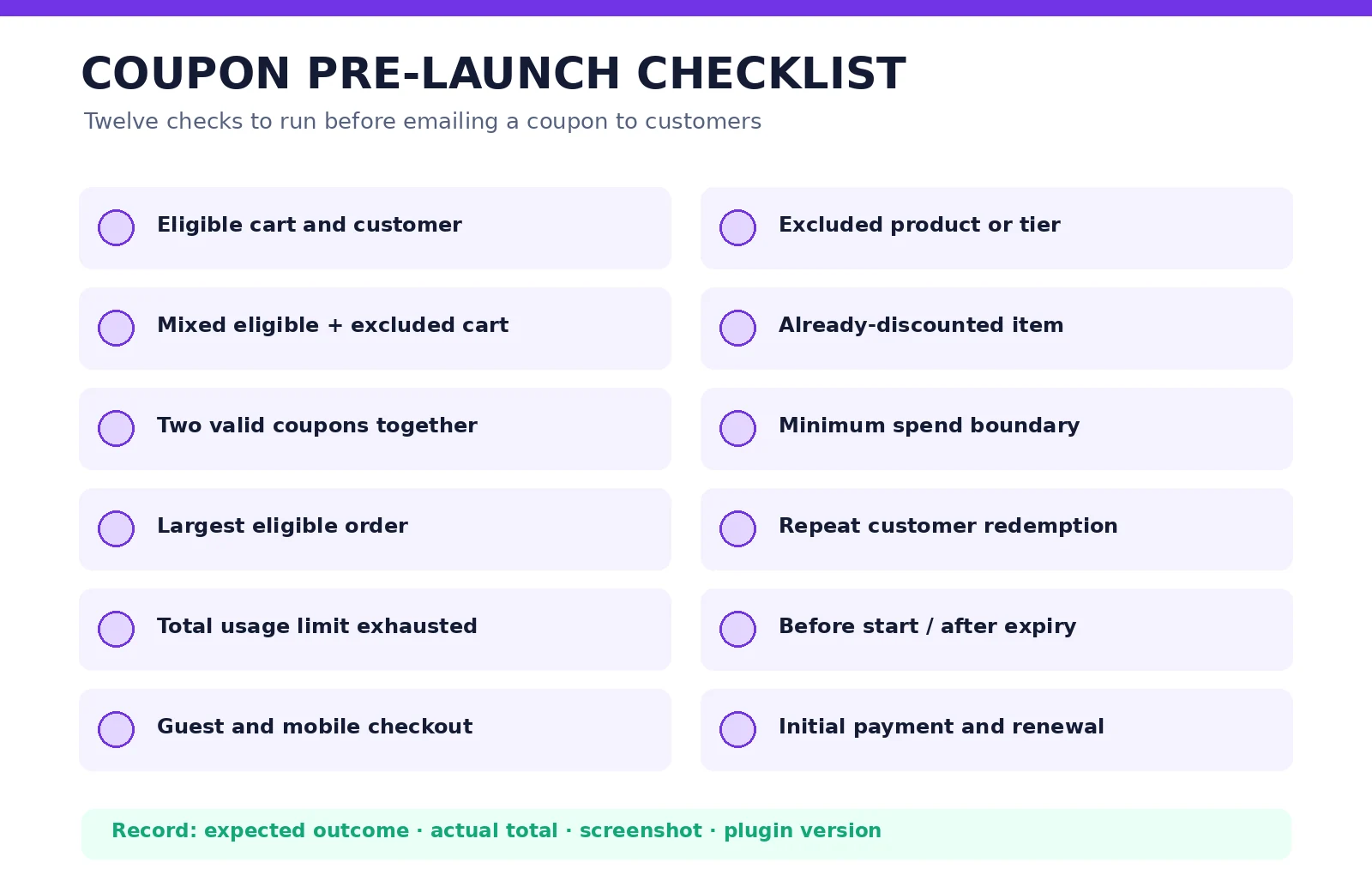
For each failed test, record the product, code, customer state, expected result, actual result, screenshot, and plugin versions. Check the cart and checkout, not just the coupon editor. If the campaign is high-value, rehearse it in staging and verify the same settings exist on production before launch.
What if a coupon leaks or starts costing more than expected?
Keep a small response plan before pressing Send. Who can disable the code? Who checks orders and refunds? Who updates the landing page? Who tells support and partners that the conditions changed? If you issue personal codes, how will you honor legitimate buyers who received the email but couldn’t redeem?
The goal isn’t to punish shoppers for trying a code they found. It’s to catch a misconfiguration quickly, preserve records, and communicate accurately. If you promised a discount publicly, consider customer trust and your legal commitments before retroactively changing the terms. A technical ability to turn off a coupon is not, by itself, permission to disregard an already advertised offer.
For abuse patterns, look for suspicious combinations of unusually large orders, repeated redemptions, shared payment details where lawfully accessible, and rapid activity. Avoid assuming that every household or shared network is a fraud ring. Manual review is often safer than an aggressive rule that rejects good customers.
Your final coupon launch brief
Before a campaign goes live, the responsible person should be able to fill out this short record:
- Purpose: What behavior should the offer change?
- Audience: Who qualifies, and how do we actually verify eligibility?
- Offer: Percentage or fixed amount, affected items, and any cap.
- Combination policy: Is stacking allowed? What happens with existing sale prices?
- Spending rules: Minimum or maximum eligible order amount, if any.
- Usage rules: Global cap, per-customer cap, and how exceptional orders count.
- Schedule: Start, end, timezone, and owner of post-expiry cleanup.
- Subscription terms: Initial charge, renewal amount, and duration of discount.
- Evidence: Screenshots of passed tests, configured coupon record, and approved public terms.
- Fallback: The person who can pause the offer and respond to customers.
Treat this as a launch document, not extra paperwork. A ten-minute review can protect a weekend’s worth of sales and save your team from explaining an offer it never meant to make.
The safest coupon is one that keeps its promise
Customers shouldn’t need to understand backend coupon logic. They should know what they’re buying, what they’re saving, and why a code does or doesn’t apply. The business, meanwhile, should know how much the offer can cost and which conditions keep that cost under control.
To plan the discount itself, start with our WordPress discount strategy and the guide to choosing a sustainable discount. For setup instructions, see how to create WordPress coupon codes.
If you’re evaluating a plugin for your own store, explore the WordPress products and deals on WPTopper and check the current licensing, pricing, and coupon terms before choosing an offer. A real deal should survive a second look at the checkout.
Frequently asked questions
Can two WooCommerce coupons be used together?
They can be combined in some configurations, but a coupon with Individual use only is designed to prevent combination with other coupons. Test compatibility with other discount and pricing plugins, plus sale items, before advertising stackability.
What does zero mean in FluentCart coupon usage limits?
In FluentCart Pro’s documented Total Limit and Per User Limit settings, 0 means unlimited, not zero permitted uses. Confirm that behavior against the plugin version your store uses.
Does a coupon restricted by email work only for first-time customers?
No. A matching billing email is not proof of first-purchase status. If you promise a new-customer-only deal, use and test a true eligibility check, or describe the offer more accurately.
Can a WordPress coupon discount future subscription renewals?
Yes, depending on the plugin, the subscription extension, and the coupon type. WooCommerce Subscriptions has recurring-payment coupons, while FluentCart Pro documents a recurring setting. Don’t assume the first payment and all renewals receive the same discount.
Should coupon codes always have an expiry date?
Not necessarily. A customer-service credit or ongoing partner arrangement might remain open intentionally. For a time-limited promotional offer, however, set a real expiration and coordinate every published claim with the configured schedule.
Can usage limits completely prevent coupon abuse?
No. Limits reduce certain misuse patterns, but guest checkout, multiple email addresses, shared networks, and edge cases can complicate enforcement. Pair reasonable controls with transaction monitoring and a fair response process.
Sources and product documentation
- WooCommerce, Managing Coupons in WooCommerce: https://woocommerce.com/document/coupon-management/
- FluentCart, Adding Coupons: https://docs.fluentcart.com/guide/marketing-sales-tools/creating-managing-coupons/adding-coupons/
- WooCommerce Subscriptions, Subscriptions Coupons: https://woocommerce.com/document/subscriptions/subscriptions-coupons/
- WooCommerce Subscriptions, Limited Subscription Payment Coupons: https://woocommerce.com/document/subscriptions/subscriptions-coupons/limited-payment-coupon-guide/
- WooCommerce, Coupon Restrictions extension documentation: https://woocommerce.com/document/woocommerce-coupon-restrictions/
- Baymard Institute, Checkout Coupon Fields and Form Friction: https://baymard.com/research-articles/checkout-flow-average-form-fields
Platform details in this guide are based on official documentation rather than a hands-on test of your store. Confirm behavior against your installed versions before launching a campaign.
Leave a Reply