
A WordPress plugin can take five minutes to install and months to regret.
The wrong plugin can slow a site down, introduce a security problem, lock important data into a proprietary system, clash with another plugin, or quietly become abandoned after you have built half your business around it.
That is why we do not judge plugins by feature lists alone.
At WPTopper, we want every plugin review, comparison, and recommendation to answer a more useful question: is this a plugin we would feel comfortable installing on a real WordPress site?
This 12-point checklist is the framework behind that decision.
Quick Answer: What Should You Check Before Installing a WordPress Plugin?
Before installing a plugin, check:
- Whether it solves a real problem you actually have
- Who develops and maintains it
- How recently and consistently it is updated
- WordPress, PHP, theme, and plugin compatibility
- Adoption and active-install signals
- Ratings and the content of user reviews
- Support quality and documentation
- Security, privacy, and data handling
- Performance impact
- Integrations, portability, and lock-in
- Pricing, renewals, and what happens if you stop paying
- How it behaves on a staging site before production
None of these checks is perfect on its own. Together, they make bad choices much easier to spot.
1. Start with the Problem, Not the Plugin
Plugin shopping gets messy when you start with a category instead of a need.
Search for “best WordPress marketing plugin,” for example, and you can end up comparing form builders, CRMs, popups, analytics tools, automation platforms, social proof plugins, SEO products, and email tools as if they perform the same job.
Start by writing down the outcome.
Instead of:
“I need a CRM plugin.”
Try:
“I need to capture leads from my forms, tag contacts based on what they submit, send automated follow-ups, and keep the data inside WordPress.”
That immediately changes which products deserve a place on the shortlist.
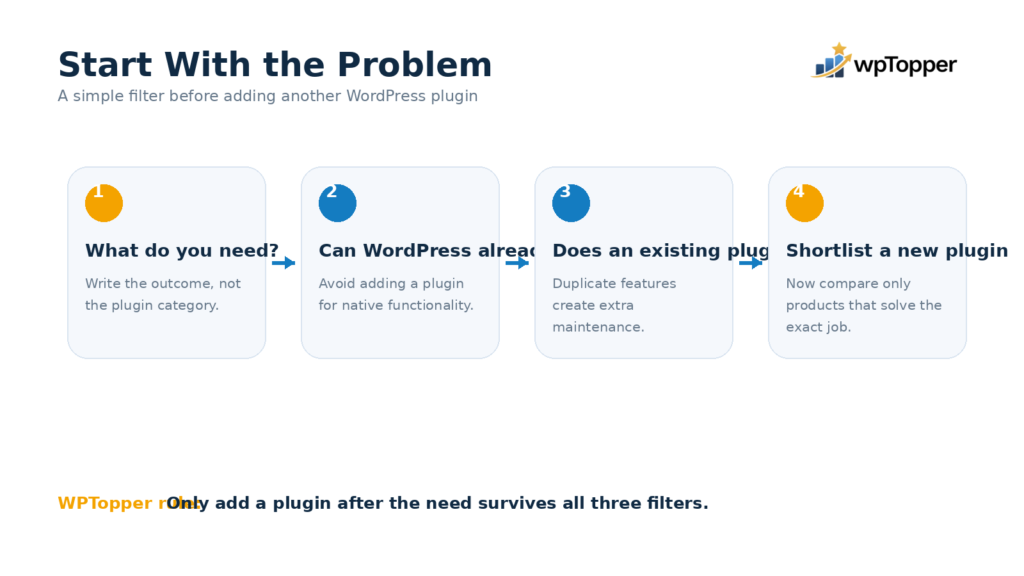
We ask three questions first:
• What exact job should this plugin do?
• Is WordPress already capable of doing it without another plugin?
• Does an existing plugin on the site already cover the same job?
Every extra plugin creates another dependency to update, test, secure, and maintain. Installing fewer plugins is not automatically faster or safer, but installing duplicate functionality rarely helps.
[INNER IMAGE 1 — “Start With the Problem” decision flow]
Visual: WPTopper-style flow diagram. “What do you need?” → “Already handled by WordPress?” → “Already handled by an existing plugin?” → “Shortlist a new plugin.” Clean white background, blue steps, orange decision markers.
2. Check Who Is Behind the Plugin
A plugin is not just code. It is an ongoing relationship with whoever maintains it.
Look at the developer or company behind the product. Check whether they have an established website, documentation, support channels, other maintained WordPress products, a public team, and a track record you can verify.
For plugins hosted on WordPress.org, the Plugin Directory provides developer information, reviews, support forums, and update history. The official Plugin Handbook says the directory is intended to be a safe place for users to download plugins, but it also makes an important point: security remains the responsibility of plugin developers.
That distinction matters.
Being listed on WordPress.org is a positive signal. It is not a lifetime guarantee that a plugin will remain secure, maintained, compatible, or right for your site.
For premium plugins sold elsewhere, we look for the same signals manually:
• A real product site
• Clear documentation
• A visible support process
• Terms and privacy information
• A changelog
• A refund policy
• An identifiable company or developer
• A history of maintaining the product
A plugin that controls checkout, membership access, customer records, backups, or email deserves more scrutiny than a plugin that adds a decorative block.
3. Look at Update History, Not Just “Last Updated”
The date of the latest update is useful, but it can be misleading by itself.
A plugin updated yesterday is not automatically healthy. A stable, focused plugin that has not needed a release in three months is not automatically abandoned either.
We look for a pattern.
Ask:
• Has the plugin received updates consistently over time?
• Do changelog entries describe real fixes and improvements?
• Does the developer respond when WordPress or PHP changes?
• Are major bugs left unresolved for long periods?
• Does the plugin appear to be maintained between major marketing launches?
WordPress security guidance recommends keeping WordPress, themes, and plugins updated and choosing themes and plugins that are actively receiving updates.
That makes maintenance history one of the strongest signals in this entire checklist.
A warning sign is not simply “this plugin is six months old.” The warning sign is a product whose development appears to have stopped while unresolved compatibility or security issues continue to pile up.
4. Verify Compatibility Before You Build Around It
Compatibility is more than “works with WordPress.”
Check the environments the plugin needs to work with:
• Your WordPress version
• Your PHP version
• Your active theme or site builder
• WooCommerce or another commerce platform, if relevant
• Your caching and performance stack
• Your CRM, forms, SMTP, analytics, or automation tools
• Multisite, if you use it
• Your hosting environment
• Other plugins touching the same area of WordPress
The more central the plugin is to the business, the more important this becomes.
A simple icon plugin breaking is irritating.
A checkout plugin conflicting with your payment gateway is revenue loss.
When a plugin advertises an integration, do not stop at the logo wall on its homepage. Find the documentation for the exact integration and check what actually syncs, which direction data moves, whether the integration requires a paid plan, and how recently the documentation was updated.
5. Use Active Installs as a Signal, Not a Score
Popular plugins have an advantage: more users usually means more real-world environments testing the product.
That can expose compatibility issues faster. It may also produce more tutorials, community answers, integrations, developer familiarity, and third-party resources.
But active installations should never become “more installs = better plugin.”
New plugins naturally have smaller install bases. Niche plugins may solve one problem exceptionally well for a few thousand users. Older plugins can have a huge installed base even while momentum is slowing.
We use adoption to answer questions such as:
• Is this plugin proven in real sites?
• Is the number reasonable for the niche it serves?
• Does the community around it appear alive?
• Is there enough adoption that integrations and support knowledge exist?
Then we combine that with the other eleven checks.
6. Read Reviews Like a Researcher
The average star rating is the least interesting part of a review section.
Read what people are actually saying.
Start with recent reviews. Then read a sample of low ratings.
You are looking for patterns:
• Repeated reports of the same bug
• Complaints about support
• Unexpected billing or renewal issues
• Features being moved behind higher plans
• Poor migrations
• Data loss
• Performance complaints
• Conflicts after updates
• A developer responding constructively to criticism
One angry review proves very little.
Twenty reviews describing the same failure deserve attention.
Also check whether positive reviews explain real use cases. “Amazing plugin!” tells you less than a review describing what the customer built, how long they have used the plugin, and what support experience they had.
Reviews are evidence, not the verdict.
7. Test the Support System Before You Need It
Support matters most when your site is already broken. That is a bad time to discover how the plugin company operates.
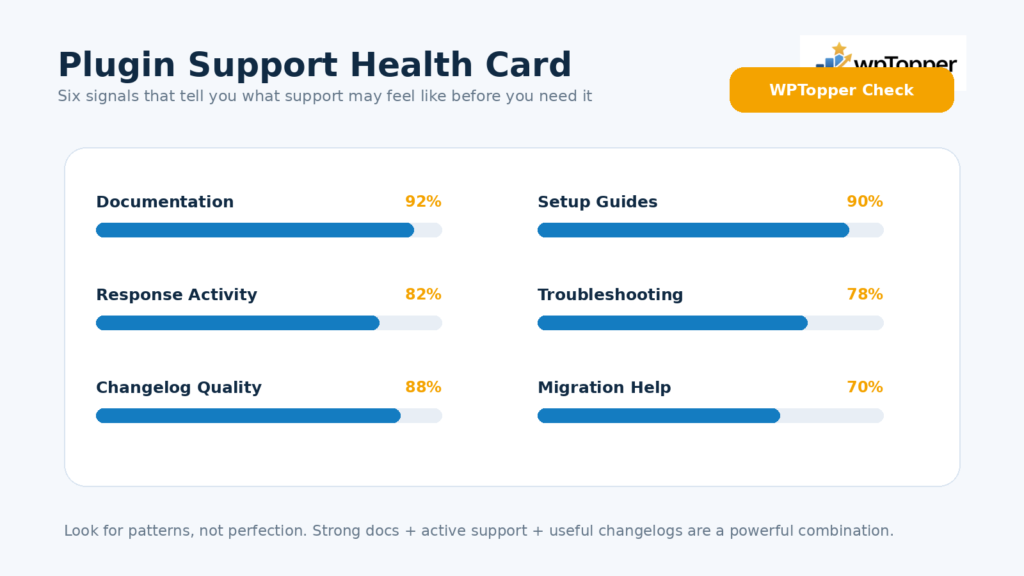
Before choosing a critical plugin, look at:
• Support forum activity
• Typical response times
• Documentation quality
• Video or written setup guides
• Troubleshooting content
• Public bug reporting
• Community groups
• Whether support differs by pricing tier
The WordPress.org Plugin Directory gives listed plugins access to free support forums, making public support activity one useful signal.
Documentation deserves equal attention.
Good documentation tells us the company understands onboarding, edge cases, integrations, migrations, and long-term usage. A powerful plugin with poor documentation pushes complexity onto your team.
Try searching its docs for three specific things you expect to need.
If you cannot find answers before buying, that friction will probably not disappear after checkout.
[INNER IMAGE 2 — Plugin Support Health Card]
Visual: compact scorecard with Documentation, Response Activity, Changelog, Setup Guides, Troubleshooting, Migration Help. Blue progress indicators, one orange “WPTopper Check” marker.
8. Take Security and Privacy Seriously
Plugins run inside WordPress. Depending on what they do, they may access users, orders, forms, files, customer details, authentication data, APIs, or database records.
Security cannot be treated as a tiny row in a comparison table.
WordPress.org’s plugin guidelines require directory plugins to follow rules covering licensing, code behavior, user consent, external services, and other areas. WordPress also has a process for reporting plugin vulnerabilities, and serious issues can lead to a plugin being temporarily closed while the problem is resolved.
Before installing a plugin, ask:
• Does it receive security fixes quickly?
• Does it have a public security contact or disclosure process?
• Does it send data to external services?
• Is that data collection clearly explained?
• Does it ask for permissions that make sense for its job?
• Can you disable telemetry or tracking where appropriate?
• Does it follow sensible user-role and capability rules?
• Has it had previous vulnerabilities, and how did the team respond?
A past vulnerability does not automatically disqualify a plugin. Popular software gets researched more heavily and vulnerabilities happen.
We care about response quality: how quickly the issue was fixed, whether users were informed appropriately, and whether the developer appears to take security maintenance seriously.
9. Check the Performance Cost
“Too many plugins slow down WordPress” is an oversimplification.
One poorly built plugin can hurt performance more than ten small, well-built plugins.
What matters is what the plugin does.
Look for:
• Additional database queries
• Front-end JavaScript and CSS
• Large assets loaded sitewide
• Remote API calls
• Background tasks
• Scheduled jobs
• Database tables that grow aggressively
• Admin dashboard overhead
• Uncached dynamic requests
For an important plugin, test before and after activation.
Measure the pages that matter rather than only the homepage.
For example, if you are testing a form plugin, test the page containing the form. If you are evaluating an eCommerce extension, test product, cart, checkout, account, and admin workflows.
WordPress’s Plugin Handbook points developers to tools such as Query Monitor for debugging database queries, hooks, HTTP requests, and other performance-related behavior.
You do not need to become a plugin developer to test intelligently. You just need a baseline and a staging environment.
10. Think About Integrations and Data Portability
Plugins rarely operate alone.
A CRM may depend on a form builder.
A membership plugin may depend on a payment system.
An LMS may need email automation.
A store may connect to shipping, tax, analytics, CRM, affiliate, and support tools.
So we ask two different questions:
First: does it integrate with the tools we use today?
Second: can we leave later without rebuilding everything?
Check:
• Import options
• Export formats
• WordPress-native data where relevant
• REST API or developer hooks
• Webhooks
• Automation integrations
• Migration tools
• What happens to content if the plugin is deactivated
• Whether important data becomes unreadable without the plugin
Vendor lock-in is not always bad. Complex products naturally create dependencies.
The problem is accidental lock-in: discovering years later that your data cannot be exported cleanly or a basic migration requires custom development.
11. Calculate the Real Price
The cheapest plan is not always the cheapest plugin.
Look beyond the number on the pricing card.
We check:
• Number of sites
• Annual vs lifetime pricing
• First-year discount vs renewal price
• Required add-ons
• Features restricted to higher tiers
• Support differences
• Update access after expiry
• Usage limits
• Transaction fees
• Storage, email, AI, or API charges
• Refund terms
Then ask what happens if you stop paying.
Can you keep using the version you have?
Do premium features stop working?
Do updates stop?
Does support end?
Does cloud functionality disappear?
Can you export your data?
For business-critical plugins, cost should be measured against replacement cost too.
Saving $50 per year is not a win if switching later costs twenty hours of work.
12. Install It on Staging Before Production
This is the final check, and it catches problems no review can predict.
Your site has its own combination of hosting, WordPress version, theme, plugins, custom code, database history, traffic, and workflows.
Create a staging copy and test the plugin there first.
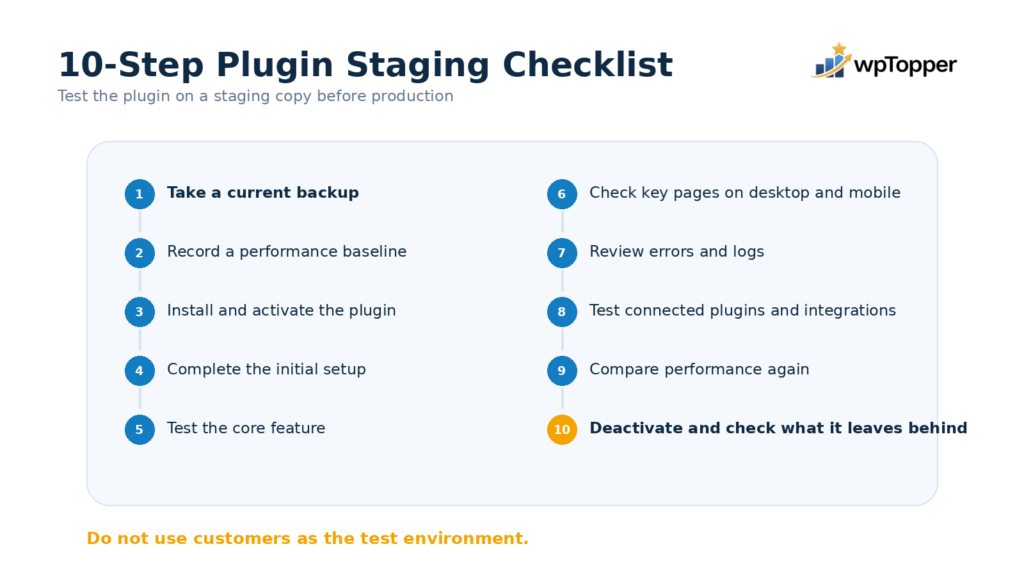
At minimum:
- Take a current backup
- Record a performance baseline
- Install and activate the plugin
- Complete the initial setup
- Test the core feature
- Test key pages on desktop and mobile
- Check browser errors and WordPress logs where available
- Test related plugins and integrations
- Compare performance
- Deactivate the plugin and check what it leaves behind
For checkout, membership, LMS, booking, security, caching, backup, migration, or database plugins, staging should be non-negotiable.
Do not use your customers as the test environment.
[INNER IMAGE 3 — 10-Step Plugin Staging Checklist]
Visual: vertical checklist inside a browser-style panel. Backup → Baseline → Install → Configure → Core Test → Mobile → Errors → Integrations → Performance → Deactivate. WPTopper blue with orange checkmark at the final step.
The WPTopper 100-Point Plugin Check
For reviews and comparisons, we can turn the checklist into a consistent scoring framework.
Problem fit and usability — 15 points
Maintenance and update history — 10 points
Compatibility — 10 points
Adoption and user feedback — 10 points
Support and documentation — 10 points
Security and privacy — 15 points
Performance — 10 points
Integrations and portability — 10 points
Pricing and value — 5 points
Staging experience and reliability — 5 points
Total — 100 points
The number is not designed to replace judgment.
It forces us to explain what we valued.
A plugin with fewer features can beat a feature-heavy competitor if it is better maintained, easier to use, faster, safer, and a stronger fit for the intended audience.
Red Flags That Make Us Pause
We become cautious when several of these appear together:
• No meaningful updates for a long period
• Recent reviews repeatedly mention the same unresolved issue
• Poor or abandoned support channels
• No clear documentation
• Vague ownership or company information
• Aggressive admin notices
• Unclear external data collection
• Important integrations that are poorly documented
• No clean migration or export path
• Pricing that hides essential features behind unexpected upgrades
• Large performance impact for a relatively small feature
• The plugin must be tested directly on production because there is no safe workflow
One red flag may have a reasonable explanation.
A collection of them usually means there is a better option.
How to Choose Between Two Good WordPress Plugins
Sometimes both products pass the basic checks.
Then stop asking which plugin is “best.”
Ask which one is best for this website.
Compare them on the three to five requirements that matter most to your project.
A local service business may care about ease of use, forms, CRM integration, and price.
An agency managing 50 sites may prioritize licensing, multisite support, white labeling, developer hooks, and predictable maintenance.
A high-volume store may care more about performance, checkout reliability, integrations, reporting, and support response.
The same plugin does not need to win every scenario.
That is why WPTopper comparisons will include a “best for” verdict instead of pretending there is one universal winner.
Frequently Asked Questions
Should I avoid plugins with low active installation counts?
No. Active installations are only one signal. New and niche plugins naturally have smaller user bases. Check maintenance, developer credibility, reviews, support, compatibility, security, and your own staging tests before deciding.
Is a plugin safe because it is on WordPress.org?
WordPress.org provides guidelines and review processes and is designed to be a trusted distribution platform, but no software directory can guarantee that every plugin will remain secure forever. Keep plugins updated, monitor security issues, and evaluate the developer’s maintenance history.
How often should a WordPress plugin be updated?
There is no ideal release schedule. A focused plugin may not need frequent feature releases. What matters is whether the developer maintains compatibility, responds to security issues, fixes bugs, and continues supporting the product.
Do more plugins make WordPress slower?
Not automatically. Performance depends on what each plugin loads and executes. A single inefficient plugin can have more impact than several lightweight plugins. Test real pages before and after adding important plugins.
Should I buy a premium plugin if a free version exists?
Only when the paid version solves a real need. Compare the features you require, support, integrations, usage limits, renewal price, and long-term cost. Do not upgrade simply because a pricing page labels a plan “recommended.”
Final Checklist
Before we recommend a WordPress plugin, we want to be able to say yes to these questions:
✓ We know exactly why the site needs it
✓ The developer and product are credible
✓ Maintenance is active
✓ Compatibility has been checked
✓ Adoption and reviews make sense for the niche
✓ Support and documentation are usable
✓ Security and privacy have been considered
✓ Performance has been tested
✓ Required integrations work
✓ Data can be moved or exported where necessary
✓ The full long-term price is understood
✓ It passed a staging test
A great plugin is not the one with the longest feature list.
It is the one that solves the right problem without creating a bigger one.
That is the standard we will use across WPTopper reviews, comparisons, Topper Picks, and plugin recommendations.
Continue reading WordPress plugin warning signs, or explore free versus premium WordPress plugins.
Leave a Reply