
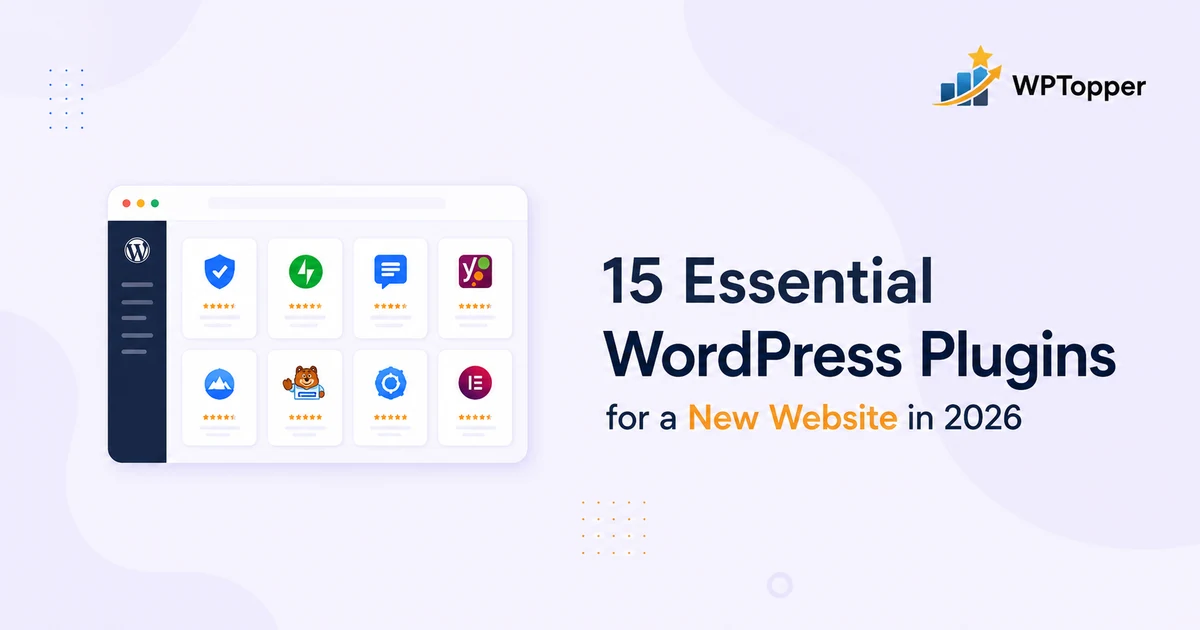
A fresh WordPress install is dangerously easy to over-decorate.
You install an SEO plugin. Then a form plugin. Then a “speed booster.” Then another speed plugin because a YouTube video said the first one was not enough. A cookie banner appears. Someone recommends a security suite. Another plugin promises database cleanup. Before the homepage is finished, the site has 27 active plugins and nobody can explain what half of them are doing.
That is not the stack we want.
The best plugin setup for a new WordPress website is lean, deliberate, and easy to maintain. Every plugin should own one clear job. Overlap should be minimal. And “essential” should mean essential to the site’s workflow — not essential because it appeared in somebody’s 40-plugin roundup.
WPTopper rule: Do not install all 15 plugins in this article by default. The first group covers capabilities most websites need. The second group becomes useful only when your site has the matching requirement.
The Quick List
| # | Plugin | Job | Who needs it? |
|---|---|---|---|
| 1 | Yoast SEO | SEO controls, schema, sitemaps | Most public websites |
| 2 | Fluent Forms | Forms and lead capture | Most business websites |
| 3 | FluentSMTP | Transactional email delivery | Sites that send WordPress email |
| 4 | UpdraftPlus | Backups and restoration | Sites without reliable managed backups |
| 5 | Wordfence Security | Firewall, scans, login security | Sites needing an application-level security layer |
| 6 | LiteSpeed Cache | Caching and performance optimization | Especially sites hosted on LiteSpeed |
| 7 | Site Kit by Google | Analytics and Search Console connection | Sites using Google measurement tools |
| 8 | EWWW Image Optimizer | Image compression and modern formats | Image-heavy websites |
| 9 | Redirection | 301 redirects and 404 monitoring | Sites changing URLs or migrating content |
| 10 | Antispam Bee | Comment spam protection | Sites using native WordPress comments |
| 11 | Simple History | Activity logging | Multi-admin, agency, editorial sites |
| 12 | Complianz | Cookie consent and privacy tooling | Sites whose legal/compliance setup requires it |
| 13 | WooCommerce | eCommerce | Sites selling products through WooCommerce |
| 14 | Query Monitor | Debugging and performance diagnosis | Developers and technical site managers |
| 15 | WP Rollback | Plugin/theme version rollback | Admins who need controlled rollback tools |
Before the List: What Should a New WordPress Site Actually Cover?
Forget plugin names for a minute. A normal business website usually needs eight capabilities:
- Search visibility — control titles, descriptions, schema, indexing behavior, and sitemaps.
- Lead capture — receive contact requests, inquiries, registrations, or newsletter signups.
- Reliable email — make sure password resets, form notifications, receipts, and other site emails have a proper sending route.
- Recovery — have a backup you can actually restore.
- Security — reduce risk around login abuse, known threats, vulnerable files, and suspicious activity.
- Performance — cache appropriately and avoid unnecessary work on every page load.
- Measurement — know whether people can find the site and what they do after arriving.
- Media efficiency — stop oversized images from becoming a recurring performance tax.
That is the core. Everything else depends on the business.
A brochure website does not need WooCommerce. A site with comments disabled does not need a comment anti-spam plugin. A solo owner may not need an audit log. A managed WordPress host may already handle backups, caching, a firewall, staging, and other infrastructure jobs.
This is why our previous guide, How Many WordPress Plugins Are Too Many?, argues that the number is less important than the work each plugin performs. A 15-plugin site can be clean. A five-plugin site can still be a mess.
The 8 Core Plugin Categories for Most New Websites
1. Yoast SEO — for search visibility
Best for: site owners who want mature SEO controls without building their own technical SEO layer.
WordPress can publish indexable content without an SEO plugin, but most serious sites quickly need more control: page titles, meta descriptions, canonical URLs, schema, XML sitemaps, social metadata, robots settings, and editorial guidance.
Yoast SEO remains one of the safest baseline recommendations because it is mature, widely documented, and heavily used. As of July 2026, its WordPress.org listing shows more than 10 million active installations and compatibility testing through WordPress 7.0.2.
Why we would install it:
- Central SEO settings without code.
- XML sitemap management.
- Schema output and page-level controls.
- Search snippet and editorial guidance.
- A large support and documentation footprint.
Do not stack it with another full SEO suite. Installing Yoast, Rank Math, AIOSEO, and SEOPress together does not create four times the SEO. It creates competing metadata, settings, and confusion.
Alternative worth testing: Rank Math, AIOSEO, SEOPress, or Slim SEO depending on workflow and desired complexity.
2. Fluent Forms — for forms and lead capture
Best for: contact forms, surveys, simple lead capture, registrations, and teams that expect their forms to grow beyond one contact page.
Most websites eventually need to collect something: an inquiry, support request, event registration, quote request, newsletter signup, job application, or survey response.
Fluent Forms is a strong starting option because its free edition already covers a broad range of everyday form-building needs, while the paid tier can expand the workflow later. The official WordPress.org page currently shows 700,000+ active installations, version 6.2.8, and a 4.8/5 rating at the time of our July 2026 check.
Why we would install it:
- Fast visual form building.
- Useful free version for normal contact and lead forms.
- Room to grow into advanced fields, integrations, payments, and automation.
- A good fit for a site that may later need more than one simple form.
The important test is not “Which form plugin has the most features?” It is “Can this form send the data where the business needs it to go?” Think CRM, email marketing, payment, help desk, or internal workflow.
3. FluentSMTP — for reliable WordPress email delivery
Best for: websites that send transactional emails and want those emails routed through a real email provider instead of relying blindly on the server’s default mail configuration.
WordPress sends password resets, form notifications, user messages, order emails, and other transactional mail. On many hosting setups, default PHP mail is not the delivery setup you want to depend on.
FluentSMTP lets WordPress connect with providers such as Amazon SES, SendGrid, Mailgun, Postmark, Google, Microsoft, or standard SMTP. Its WordPress.org listing shows 600,000+ active installations.
Why we would install it:
- Provider-based email sending.
- Email logging and delivery visibility.
- Multiple connection options.
- No need to make WordPress itself your mail server.
Installing an SMTP plugin is only half the job. Your sending domain should also have the authentication records required by your provider, and you should test actual delivery before launch.
4. UpdraftPlus — for backups you control
Best for: websites that do not already have a trustworthy backup-and-restore process through their host or infrastructure provider.
A backup is boring until the exact minute it becomes the most valuable thing on the website.
UpdraftPlus can schedule backups of WordPress files and the database, store them remotely, and restore from the dashboard. The official plugin page lists 3+ million active installations and supports storage destinations such as Google Drive, Dropbox, Amazon S3-compatible services, FTP, and others depending on edition.
Why we would install it:
- Scheduled backups.
- Remote storage options.
- Restoration workflow inside WordPress.
- Useful migration capability.
But first check your host. If you already receive frequent off-site backups with tested one-click restore and suitable retention, another backup plugin can be redundant. The requirement is recoverability, not “a backup plugin must exist.”
5. Wordfence Security — for an application-level security layer
Best for: site owners who want firewall, malware scanning, login protection, and security visibility from inside WordPress.
Security is not a single plugin. Hosting architecture, updates, user permissions, passwords, two-factor authentication, backups, and operational discipline all matter.
Wordfence adds a WordPress-level firewall, malware scanner, brute-force protections, live traffic visibility, and two-factor authentication controls. Its 2026 changelog shows continued development and WordPress 7 compatibility work.
Why we would install it:
- Security scanning.
- Firewall controls.
- Login and brute-force protection.
- Two-factor authentication.
- Alerts and visibility for site administrators.
On managed hosting, ask what the host already filters at the infrastructure level. You may still want Wordfence, but avoid enabling aggressive overlapping controls without understanding the interaction.
6. LiteSpeed Cache — for performance on the right hosting stack
Best for: sites running on LiteSpeed Web Server or OpenLiteSpeed, and admins who want caching plus optimization controls in one ecosystem.
LiteSpeed Cache is one of the biggest performance plugins in the WordPress directory, with 7+ million active installations on its current listing.
The key caveat: its strongest server-level caching benefits are tied to LiteSpeed infrastructure. Do not choose a caching plugin based only on popularity. Choose the caching layer your host is designed to support.
Why we would install it on LiteSpeed hosting:
- Server-level page caching integration.
- CSS/JS optimization controls.
- Image and media optimization options.
- Database and object-cache related tooling depending on setup.
If your host has its own caching layer: use the host-recommended plugin or configuration first. Running several full caching/optimization plugins at the same time can create more debugging than speed.
7. Site Kit by Google — for measurement without messy setup
Best for: site owners using Google Search Console, Google Analytics, PageSpeed Insights, and other supported Google services.
Site Kit is Google’s official WordPress plugin. It can connect supported Google services and surface key information in WordPress. Its current WordPress.org page shows 5+ million active installations and describes the plugin as free and open source.
Why we would install it:
- Simpler connection to Search Console and Analytics.
- Useful dashboard summaries.
- Fewer reasons to paste tracking snippets manually into theme files.
- Official integration maintained by Google.
A measurement plugin should not become a dashboard addiction. Set up tracking correctly, then use the data to answer specific questions: Which pages attract search traffic? Which content converts? Where are visitors dropping?
8. EWWW Image Optimizer — for image-heavy websites
Best for: sites where editors upload product photos, blog graphics, screenshots, portfolio images, or other media regularly.
Image weight is one of those problems that quietly returns every time a new editor uploads a 4 MB photo straight from a phone or camera.
EWWW Image Optimizer offers local optimization, WebP conversion, and tooling to identify poorly scaled images. Its WordPress.org listing currently shows 1+ million active installations.
Why we would install it:
- Automated image optimization.
- Modern image format support.
- Useful for sites with multiple content editors.
- Reduces the need to rely on everyone remembering to optimize before upload.
Again, check your hosting/CDN stack. Some platforms already optimize and transform images. You do not need three systems processing the same file.
7 Situational Plugins You Should Add Only When the Site Needs Them
9. Redirection — when URLs change
Install when: you are migrating content, changing slugs, rebuilding an older site, or need better control over 301 redirects and 404s.
Redirection can create and manage redirects from WordPress and track 404 activity. The main Redirection plugin by John Godley currently shows 2+ million active installations, and version 5.9.0 was released in July 2026 with expanded import/export tooling.
You may not need it on day one if the site is truly new and your SEO plugin or server already handles the few redirects you need. But it becomes extremely useful once URLs start moving.
10. Antispam Bee — when you use WordPress comments
Install when: native WordPress comments are enabled and spam becomes part of the publishing workload.
Antispam Bee is a privacy-minded comment anti-spam plugin with 700,000+ active installations. Its own listing is clear about the boundary: it is designed primarily for WordPress comments and is not a general anti-spam layer for every form or user-registration workflow.
That boundary is exactly why this is situational. If comments are off, skip it. If the problem is contact-form spam, solve that at the form layer.
11. Simple History — when more than one person changes the site
Install when: multiple admins, editors, clients, or agency staff work in the same WordPress installation.
Simple History records meaningful changes such as content edits, logins, plugin updates, and other activity. Its official page describes use across 300,000+ WordPress sites.
An audit trail pays for itself the first time somebody asks:
Who changed this setting yesterday?
For a solo personal blog, this may be unnecessary. For an agency handoff, editorial team, WooCommerce operation, or membership business, it can save hours of guessing.
12. Complianz — when consent management is part of your compliance plan
Install when: your legal/privacy requirements call for cookie consent or related controls and the plugin fits the jurisdictions and tooling you actually use.
Complianz is a widely used privacy and cookie-consent plugin with 1+ million active installations on WordPress.org as of our check.
Important: a plugin is not a lawyer. Privacy obligations depend on the business, location, users, tracking tools, and applicable laws. Use a plugin to implement the consent workflow you have decided on — not to outsource legal judgment to a setup wizard.
13. WooCommerce — when the website is a store
Install when: the site needs the WooCommerce ecosystem for physical products, digital goods, subscriptions through extensions, or other supported commerce workflows.
WooCommerce remains one of WordPress’s dominant commerce platforms. Its official directory page lists 7+ million active installations and version 10.9.4 in July 2026.
It is powerful, but it is not “essential” to a normal service website. Commerce changes the whole stack: payments, tax, email, inventory, product data, checkout performance, fraud, backups, and customer support all become more important.
Build the store architecture intentionally instead of activating WooCommerce because “maybe we will sell something later.”
14. Query Monitor — when you need to understand what WordPress is doing
Install when: you develop WordPress sites, troubleshoot plugin conflicts, investigate slow database queries, PHP errors, scripts, styles, hooks, REST calls, or HTTP requests.
Query Monitor is not a consumer “speed plugin.” It is a diagnostic tool. Version 4.0 arrived in 2026 with a redesigned client-side interface and timeline, and its current listing shows 200,000+ active installations.
For developers, this is one of the most useful plugins on the list because it answers a better question than “Why is WordPress slow?” It helps show which component is doing the work.
You may keep it disabled when you are not actively diagnosing something, depending on your workflow.
15. WP Rollback — when a plugin update needs a controlled escape route
Install when: you maintain sites where quickly switching a WordPress.org plugin or theme to a previous version is part of your troubleshooting workflow.
WP Rollback currently shows 300,000+ active installations and supports rolling WordPress.org plugins/themes between available versions. Its own documentation repeatedly warns that rollback is not a substitute for backups and staging.
We agree.
The correct sequence is:
- Have a backup.
- Test changes on staging where possible.
- Understand why you are rolling back.
- Use rollback as a controlled recovery action — not a normal update strategy.
Which Plugins Should You Install on Day One?
For a standard business or content website, our starting stack would usually look closer to this:
| Capability | Starting choice | Install immediately? |
|---|---|---|
| SEO | Yoast SEO | Usually yes |
| Forms | Fluent Forms | Yes if the site accepts inquiries |
| Email delivery | FluentSMTP | Yes if WordPress sends important email |
| Backup | UpdraftPlus | Yes unless host already handles it well |
| Security | Wordfence | Depends on host/security architecture |
| Performance | LiteSpeed Cache or host-recommended equivalent | Yes, but choose one caching strategy |
| Analytics | Site Kit | At launch |
| Image optimization | EWWW | Yes for image-heavy publishing |
That is potentially eight plugins — not fifteen, not thirty.
And even eight is not a target. It is a map of capabilities. Your host, theme, CDN, WordPress core, or another existing plugin may already cover some of them.
What We Would Not Install on a Brand-New Site
Multiple plugins for the same major job
One SEO suite. One caching strategy. One primary form builder. One SMTP layer. One backup system you trust.
Overlap is where “more features” starts turning into unclear ownership.
Plugins for hypothetical future features
Do not install an LMS because a course might launch next year. Do not install WooCommerce because the business might sell a PDF someday. Do not install a membership suite because somebody mentioned a private portal in a meeting.
Install for current workflows or workflows that are actively being built.
Utility plugins you use once and forget
Temporary migration, import, debugging, search-and-replace, and setup tools can be excellent. But after the task is complete, review whether they need to remain active — or installed at all.
Anything you cannot explain in one sentence
Open Plugins → Installed Plugins.
For every active plugin, finish this sentence:
We need this plugin because it ______.
If the answer is vague, investigate it.
The WPTopper New-Site Plugin Checklist
Before launching, we would run this list:
- Every plugin has one documented job.
- No two full suites are fighting for the same responsibility.
- Updates are current. WordPress documentation recommends keeping plugins updated for security and performance.
- Compatibility has been checked. WordPress exposes compatibility information in the plugin interface and directory.
- There is a current restore point.
- Transactional email has been tested.
- Forms have been submitted from the live front end.
- Caching has been tested while logged out.
- Site Health has been reviewed under Tools → Site Health.
- Unused plugins have been deleted rather than abandoned.
WordPress’s own Site Health guidance says a healthy site should be up to date, well maintained, secure, and running suitable software versions. WordPress also supports per-plugin automatic updates, although we recommend combining auto-update decisions with backups and a sensible testing process rather than treating every plugin identically.
A Better Way to Think About “Must-Have WordPress Plugins”
The phrase must-have plugin is useful for search. It is less useful for architecture.
A better question is:
What capabilities would make this website unreliable, invisible, insecure, or unable to do its job if they were missing?
That normally reveals the real stack quickly.
A local service site probably cares about SEO, forms, email delivery, backups, security, performance, analytics, and maybe reviews.
An online store adds commerce, payments, inventory, transactional email, fraud controls, and more aggressive performance requirements.
A publication adds editorial workflow, revision history, multi-user visibility, and potentially stronger comment moderation.
A membership site adds registration, access control, billing, email automation, and account management.
The plugin list should follow the business model — not the other way around.
Frequently Asked Questions
How many plugins should a new WordPress website have?
There is no universal safe number. A simple site may need only a handful, while a store or membership site may need substantially more. Code quality, workload, overlap, maintenance, and hosting architecture matter more than raw plugin count.
Should I install all 15 plugins on this list?
No. The first eight represent common capabilities, and even those may be handled by your host or existing stack. The remaining plugins are situational.
Are free WordPress plugins good enough for a new site?
Often, yes. Start with the free version when it solves the complete requirement. Upgrade when premium support, automation, integrations, or advanced features create more value than the cost. See our guide to free vs premium WordPress plugins for the full decision framework.
Do I need a security plugin if I use managed WordPress hosting?
Not automatically. Managed hosts may already provide firewalling, malware monitoring, backups, rate limiting, and other protections. Review the host’s security architecture before adding overlapping controls.
Do I need a backup plugin if my host takes backups?
You need a reliable recovery strategy. If the host provides frequent, off-site backups with suitable retention and tested restore, that may be enough. Some site owners still prefer an independent backup copy.
Can I use two SEO plugins?
Do not run two full SEO suites unless you have a very specific migration or testing reason. They can overlap on metadata, schema, sitemaps, and indexing controls.
What plugin should I install first?
Before adding functionality, establish a clean backup/restore point. Then build the stack in layers and test after each major addition. That makes conflicts easier to isolate.
Final Take
A strong WordPress stack is not impressive because it has lots of plugins.
It is impressive because the owner can explain exactly why every plugin is there.
Start with the essential capabilities. Choose one strong tool per job. Let hosting and WordPress core handle the things they already handle well. Add specialist plugins only when a real requirement appears.
That gives you something far more valuable than a giant “must-have plugins” list:
a WordPress site you can actually understand, maintain, and grow.
Continue reading how to choose a WordPress plugin, or explore how many WordPress plugins are too many.
Leave a Reply