
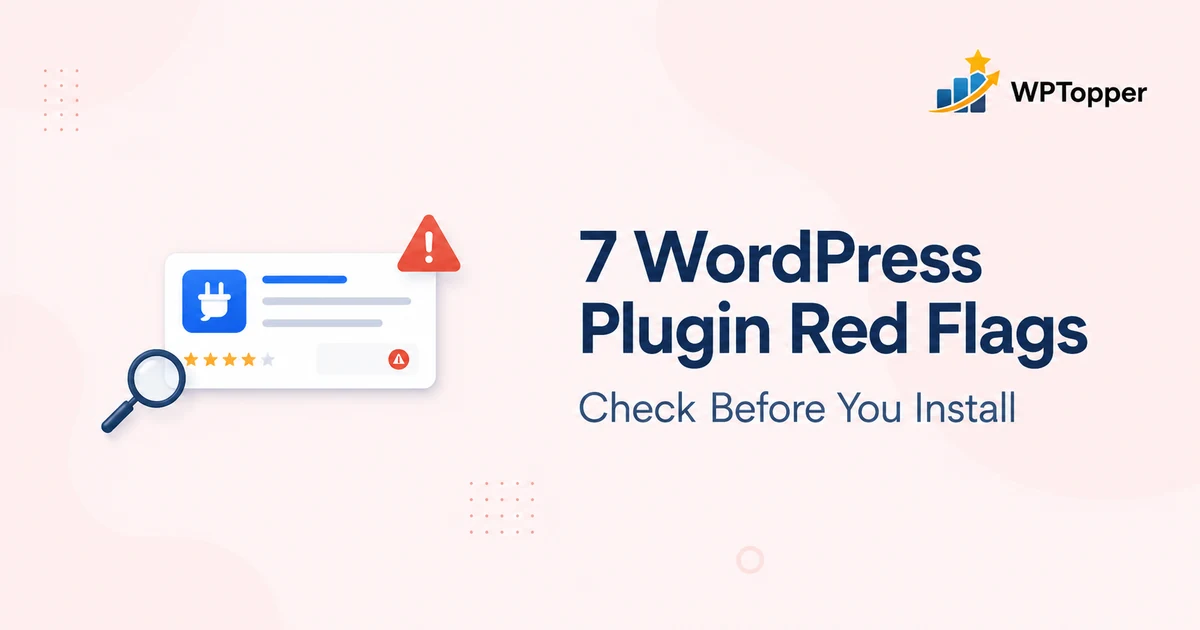
A plugin can look perfect in a screenshot and still be the wrong thing to put on your site.
The risk is not limited to obviously malicious software. A plugin can create trouble simply because it is abandoned, poorly supported, too aggressive, dependent on a service you do not understand, duplicating another tool, or difficult to remove later.
That is why we do not judge WordPress plugins by star rating alone.
Before installing one, we want answers to a few boring questions:
Who maintains it? Is it compatible with the site? What does it send outside WordPress? What job does it own? How does it behave in wp-admin? And can we get out cleanly if the relationship goes bad?
Here are seven warning signs that should make you pause before clicking Install Now.
Important: One warning sign is not automatic proof that a plugin is unsafe. Treat red flags as reasons to investigate. Several red flags together are a very different story.
1. It Looks Stale — And the Compatibility Story Is Unclear
The easiest warning sign to spot is an old compatibility status.
WordPress.org exposes compatibility information in the Add Plugins screen and on plugin listings. WordPress documentation says a plugin may be shown as compatible with your WordPress version or as untested with it. The Plugin Directory also displays an “out of date” warning when a plugin has not declared support for the latest three major WordPress releases.
That is useful. It is not a conviction.
A tiny plugin may be feature-complete and need very few code changes. A developer may also forget to update the Tested up to value even though the plugin still works.
So the real warning sign is not simply:
This plugin has not shipped an update recently.
It is:
There is no recent evidence that anyone is checking whether this plugin still works with the WordPress environment I run.
What to check
- Last updated date.
- WordPress “tested up to” version.
- PHP requirements.
- Recent changelog entries.
- Whether the developer responds to compatibility reports.
- Whether users report the same unresolved breakage after recent WordPress releases.
When an old plugin can still be okay
Suppose the plugin adds one simple shortcode using stable WordPress APIs. It may work for years without needing a flashy feature release.
In that case, test it on staging, review the code if you are qualified to do so, and verify the developer is still reachable.
When to walk away
If the plugin is stale and its support forum is dead and users are reporting current-version failures and there is no visible maintainer activity, you are no longer evaluating one harmless warning.
You are evaluating a maintenance pattern.
2. You Cannot Tell Who Maintains It or Where Support Actually Lives
Every plugin creates a dependency.
The bigger the job, the bigger the dependency.
If a plugin handles checkout, authentication, backups, security, forms, membership access, or business data, the maintainer matters almost as much as the feature list.
Before installing, you should be able to identify:
- the developer or company
- a working product website
- documentation
- a support channel
- a changelog or release history
- a clear path for reporting bugs
For WordPress.org plugins, the directory automatically provides a support forum. The Plugin Handbook actively encourages developers to listen to users and respond through those channels.
Do not obsess over perfect response times. Free plugin support is often provided without a paid SLA.
Look for something more basic:
Is anybody home?
Healthy signals
- Recent answers to technical questions.
- Documentation that matches the current interface.
- Changelog entries that explain meaningful changes.
- Known issues being acknowledged instead of hidden.
- Clear distinction between free community support and paid support.
Warning signals
- Broken documentation links.
- Support tickets with the same issue repeating for months.
- A developer identity that cannot be verified anywhere.
- A “support” link that goes only to a sales page.
- No indication how security issues should be reported.
A plugin does not need a 100-person company behind it. Some excellent WordPress plugins are maintained by one person.
But you should know who that person or organization is.
3. It Sends Data Outside Your Site, but the Plugin Is Vague About Why
This is one of the most important checks in 2026 because many plugins now connect WordPress to SaaS products, AI services, analytics platforms, CRMs, email providers, CDNs, spam databases, and automation tools.
External services are not a red flag by themselves.
A payment plugin has to talk to a payment provider. An SMTP plugin must communicate with an email service. An AI plugin may need an AI API. A CDN plugin may need a remote platform.
The warning sign is unexplained communication.
The current WordPress.org Plugin Guidelines say directory plugins may not track users without explicit, authorized consent. They also require documentation around how user data is collected and used, and they permit Software-as-a-Service integrations when the external service provides substantial functionality and is documented.
Ask these questions
- What data is sent?
- Where is it sent?
- Why is it necessary?
- Does it happen only after I connect/opt in?
- Is there a privacy policy?
- Can I disable telemetry?
- Does the plugin still work locally when optional tracking is declined?
For AI plugins, add two more:
- What site/content data is included in prompts or tool calls?
- What permissions does the connected agent have?
Do not accept “AI powered” as a privacy explanation.
A useful distinction: service dependency vs hidden tracking
If you install a Postmark integration, you expect email data to reach Postmark.
If you install a simple table-of-contents plugin and discover it sends page data to an unrelated external server with no clear opt-in, that deserves a very different reaction.
Feature purpose and data behavior should make sense together.
4. The Plugin Asks for More Scope Than Its Job Appears to Require
WordPress plugins are powerful by design. They can hook into the admin, database, front end, REST API, scheduled tasks, users, media, email, and many other areas.
That flexibility is why plugins are useful.
It is also why we care about scope.
A small plugin that solves a small problem should normally look like a small plugin.
Be cautious when a narrowly marketed tool suddenly wants to become:
- your analytics system
- your CRM
- your email sender
- your SEO dashboard
- your site manager
- your cloud account connector
- your plugin installer
without those capabilities being central to the job you installed it for.
This does not mean “few features = good”
Large suites can be the cleanest option when you genuinely use their integrated capabilities.
A commerce platform is naturally broad. A security suite may need access to files, logins, requests, and scheduled scans. A CRM may legitimately store contacts and run automations.
The test is proportionality:
Does the plugin’s footprint make sense for the problem it claims to solve?
If not, dig deeper before activating it.
5. It Hijacks wp-admin with Nags, Ads, Forced Branding, or Pressure
This is not merely an aesthetic complaint.
How a plugin behaves inside your dashboard tells you something about how the developer thinks about user control.
The WordPress.org Plugin Guidelines explicitly say plugins should not hijack the admin dashboard. Upgrade prompts and notices should be limited in scope, and site-wide notices are expected to be dismissible or disappear when resolved. The guidelines also discourage dashboard advertising.
Yet most WordPress users have seen the opposite:
- permanent five-star review requests
- Black Friday banners covering multiple admin screens
- notification counters that are actually sales messages
- forced “Powered by” links on the front end
- upsells inside unrelated workflows
- three separate menu items for the same product family
A reasonable upgrade message is not a problem.
Free products need sustainable businesses behind them.
The warning sign is when the plugin’s monetization competes with the job you installed it to do.
Ask yourself
- Can notices be dismissed?
- Are promotions limited to the plugin’s own screens?
- Does the plugin add public credits without asking?
- Are required actions and marketing messages clearly different?
- Is the free product still usable without constant pressure?
Good product marketing should make the upgrade attractive.
It should not make wp-admin miserable.
6. It Duplicates a Job Your Existing Stack Already Handles
Some bad plugin decisions are not about the plugin at all.
The plugin is fine.
Your stack is the problem.
Installing a second full SEO suite, caching engine, SMTP router, backup system, security firewall, or form builder can introduce overlapping settings, duplicate processing, confusing ownership, or competing output.
This is why our guide on how many WordPress plugins are too many focuses on workload and overlap, not raw plugin count.
Before installing, identify the job
Write one sentence:
We need this plugin because it ______.
Then ask:
Does another active plugin, the theme, the host, WordPress Core, or our CDN already do that?
If yes, compare the two approaches before adding another layer.
Common overlap zones
| Job | Typical conflict |
|---|---|
| SEO | Two suites outputting metadata, schema, and sitemaps |
| Caching | Host cache + multiple cache plugins + CDN optimization all rewriting the same assets |
| SMTP | Two plugins attempting to take over WordPress mail routing |
| Security | Multiple firewall/login systems blocking or duplicating controls |
| Image optimization | Host/CDN image transforms plus multiple compression plugins |
| Forms | Several builders storing duplicate scripts/assets and creating fragmented lead workflows |
| Backups | Multiple large backup jobs competing for disk, CPU, or remote storage |
Sometimes migration requires temporary overlap. That is different from keeping duplicate systems active indefinitely.
7. The Download Source, Update Path, or Exit Path Is Not Trustworthy
You should know where the plugin came from.
You should know how it will receive updates.
And you should know what happens when you remove it.
Those three things form the plugin’s lifecycle.
Start with provenance
WordPress.org gives you a public listing, maintainer information, compatibility metadata, support history, update delivery through WordPress, and directory rules.
Commercial plugins can be equally trustworthy when they come directly from established developers with a clear licensing and update system.
The caution level rises when the plugin comes from:
- a random file-sharing link
- an unknown mirror
- a forum attachment
- a “premium plugins free” download site
- a nulled/cracked package whose code may have been modified
A cheap license is not worth losing the update chain.
Then check updates
Ask:
- How will security updates reach the site?
- Are updates delivered through WordPress.org or the vendor?
- What happens when the license expires?
- Does the plugin stop functioning or only stop receiving updates/support?
- Does it depend on a cloud service that could disappear?
Finally, check the exit path
This gets ignored until migration day.
Find out:
- Does uninstall remove plugin settings?
- Does it remove user-generated/business data?
- Can that data be exported first?
- Are posts filled with proprietary shortcodes if the plugin is disabled?
- Does a page builder leave readable content behind?
- Can you migrate to another product?
- Does canceling a SaaS account disable critical site functionality?
WordPress provides developers with uninstall methods specifically so plugins can clean up when removed. Whether a particular plugin deletes data automatically is a product decision — and sometimes keeping data is desirable — but the behavior should be documented.
What Is Not Automatically a Red Flag?
Plugin evaluation gets silly when every imperfection becomes a reason to panic.
These things deserve context.
A small install count
New and niche plugins start small. Active install count tells you adoption, not code quality.
A recent launch
A brand-new plugin has less history, so test more carefully. That does not make it bad.
A paid upgrade
Commercial software is normal. The question is whether the free product is honest about what it does and the upgrade is priced clearly.
An external service
Many useful products require external infrastructure. Email delivery, spam detection, video hosting, AI, analytics, and payment processing are obvious examples.
Transparency matters more than “everything must run locally.”
A support ticket with an angry user
Every successful plugin eventually gets negative support threads.
Look for patterns:
- Did the developer respond?
- Was the issue reproducible?
- Was it fixed?
- Are dozens of users reporting the same unresolved problem?
A plugin that has not shipped features lately
Mature software does not need novelty every month.
You care about maintenance and compatibility, not an artificial feature treadmill.
The 60-Second Plugin Trust Check
Before installing anything, answer these seven questions:
- Who maintains it?
- Is it tested with recent WordPress versions?
- Can I find useful documentation and an active support path?
- What data leaves my site, and why?
- Does another part of my stack already do this job?
- Can I disable and remove it without creating a disaster?
- Do I understand how the developer makes money and how updates are delivered?
If the answers are clear, move to staging.
If three answers are “I have no idea,” that is your answer.
What to Test Before Installing a Plugin on Production
Even a plugin with zero visible red flags can conflict with your site.
Use a staging environment for anything important.
Before activation
- Take a current backup.
- Record performance and errors.
- Confirm the plugin’s requirements.
- Read setup documentation.
After activation
- Test the feature it was installed for.
- Open key pages logged in and logged out.
- Check mobile layouts.
- Submit forms.
- Run checkout if commerce is involved.
- Check email delivery.
- Review Site Health and error logs.
- Compare page weight and response time where relevant.
- Check wp-admin for new notices, menus, or unexpected behavior.
Then deactivate it
This is underrated.
Deactivate the plugin on staging and see what happens.
- Does the site still render?
- Does content remain readable?
- Are important settings preserved?
- Does the plugin leave scheduled jobs or errors behind?
- What does uninstall do?
Testing the exit can tell you more about a plugin than testing the onboarding.
How WPTopper Will Handle Plugin Reviews
These warning signs will become part of our review methodology.
We do not want WPTopper reviews to end with:
Great plugin. Lots of features. 4.8 stars. Recommended.
For serious reviews, we will look at:
- maintenance and compatibility
- developer/support health
- privacy and external-service behavior
- scope and performance
- admin experience
- overlap with common stacks
- pricing and update model
- data ownership and exit path
A good recommendation must answer two questions:
Who should use this?
And just as importantly:
Who should not?
Frequently Asked Questions
Is every plugin in the WordPress.org directory safe?
The directory provides review, guidelines, public metadata, support forums, and a managed update channel, which are useful trust signals. But plugins vary in quality and maintenance. Evaluate the specific product and test important plugins before production.
Is an outdated WordPress plugin always unsafe?
No. Some small plugins are stable and feature-complete. But old compatibility metadata, no maintainer activity, unresolved reports, and a stale codebase together justify stronger caution.
Should I avoid plugins that connect to external services?
No. Many legitimate plugins depend on external services. Check what data is sent, why it is required, how consent works, and whether the service is clearly documented.
Are premium WordPress plugins safer than free plugins?
Price does not prove quality. Evaluate maintenance, support, security practices, product fit, update delivery, and developer reputation. Both free and premium plugins can be excellent or poor choices.
Can too many dashboard notices be a warning sign?
Yes, especially when notices are persistent, unrelated, difficult to dismiss, or appear across the whole admin. WordPress.org’s plugin guidelines specifically discourage admin hijacking and excessive advertising.
What is a nulled WordPress plugin?
The term commonly refers to a paid plugin distributed outside its official sales/update channel, often with licensing controls altered or removed. Because you cannot reliably know what else was modified and you lose the trusted update path, it is a poor choice for a production site.
What should I do if a plugin fails this checklist but I really need its feature?
Look for alternatives first. If there is no substitute, isolate the risk: test on staging, review the code with a qualified developer, restrict access where possible, back up frequently, monitor the feature, and document your replacement plan.
Final Take
The best time to discover a bad plugin relationship is before the plugin owns your data, checkout, design, or workflow.
Do not look for perfection.
Look for evidence of responsible maintenance, clear behavior, proportional scope, respectful UX, a trustworthy update chain, and an exit you understand.
A WordPress plugin should make the site easier to operate.
If evaluating it already requires ignoring seven uncomfortable questions, installation is probably not the next step.
Continue reading how to choose a WordPress plugin, or explore test WordPress updates safely.
Leave a Reply