
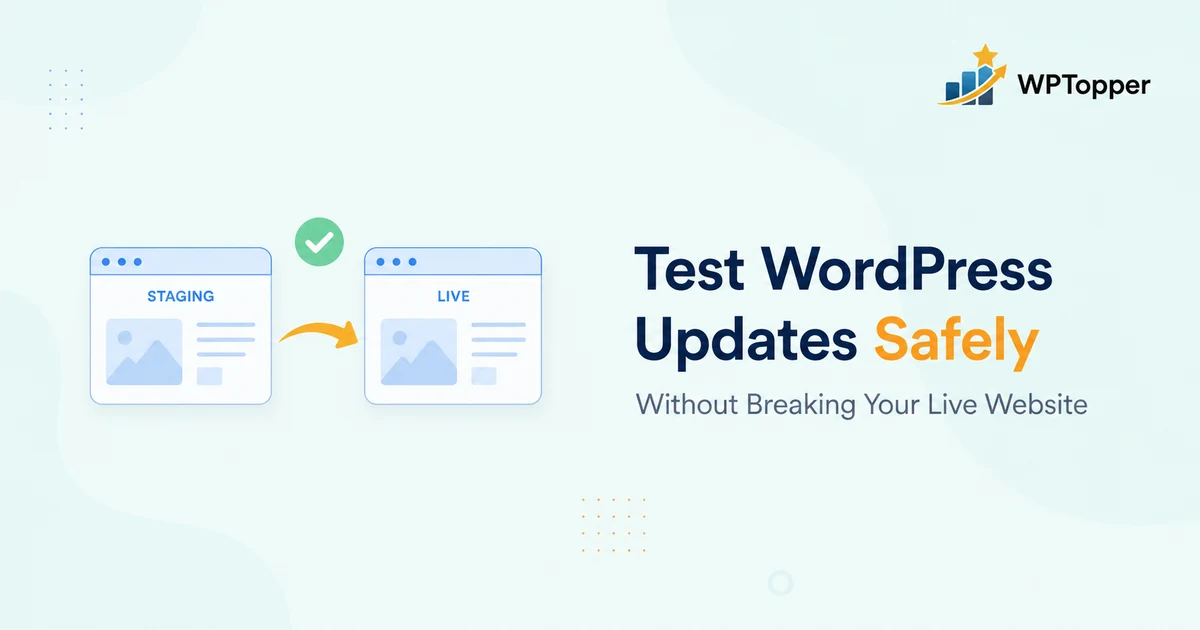
The dangerous part of a WordPress update is rarely clicking Update.
It is discovering three hours later that checkout stopped calculating shipping, a form no longer sends notifications, the mobile menu disappeared, or a plugin quietly started throwing errors in the background.
Updates are necessary. WordPress documentation recommends keeping Core, plugins, and themes current for security and performance. But “keep everything updated” does not mean “click Update All on production and hope.”
A safer process is simple:
Make recovery possible first. Rehearse the update somewhere safe. Test the workflows that matter. Then update production and watch it.
This guide gives you a repeatable process for WordPress Core, plugin, and theme updates — from a tiny utility patch to a major release such as WordPress 7.1.
The Quick Answer: How Do You Update WordPress Safely?
- Know what you are updating. Read the changelog and identify high-risk components.
- Create a fresh, restorable backup. Include both files and the database.
- Clone the site to staging or local development.
- Record a baseline. Know what “working” looks like before changing anything.
- Apply the same update sequence you intend to use on production.
- Test critical workflows end to end.
- Check logs, Site Health, browser console errors, and performance.
- Update production during an appropriate maintenance window.
- Run a smaller post-update smoke test immediately.
- Monitor after deployment and keep the rollback route ready.
If your process skips backup, testing, and recovery, you do not really have an update process. You have an update button.
Why WordPress Updates Can Break an Otherwise Healthy Site
WordPress websites are systems built from independent moving parts:
- WordPress Core
- Your active theme
- Plugins
- PHP and server software
- Database structure
- Browser-side JavaScript and CSS
- CDN and caching layers
- External APIs
- Payment gateways
- Email providers
- CRM, automation, and webhook integrations
An update can be perfectly valid by itself and still expose a compatibility problem between two components.
For example, a plugin may update its JavaScript dependency while your theme still expects an older behavior. A WooCommerce extension may change a checkout hook. A page builder may adjust generated markup. A major WordPress release may remove or change a deprecated API that an old plugin still uses.
This is why “the update installed successfully” is not the same thing as “the website still works correctly.”
Step 1: Classify the Update Before You Touch It
Not every update deserves the same testing ceremony.
A tiny utility plugin that adds a dashboard convenience does not carry the same business risk as the plugin that controls your checkout, memberships, course access, security, caching, or lead capture.
We use three practical risk tiers.
| Risk | Examples | Suggested process |
|---|---|---|
| Lower | Small isolated utility, admin-only helper, minor cosmetic tool | Backup + quick review + smoke test; auto-update may be reasonable |
| Medium | SEO, forms, analytics, content blocks, page UI | Read changelog, staged test, test affected workflow |
| Higher | Commerce, payments, membership, LMS, security, caching, database-heavy tools, major Core release | Fresh backup, staging rehearsal, full regression on critical flows, explicit rollback plan |
Read the changelog, but read it like an operator
Do not just scan for exciting features.
Look for language such as:
- database migration
- breaking change
- deprecated
- removed
- minimum PHP version
- minimum WordPress version
- new REST API behavior
- checkout changes
- authentication changes
- cache changes
- schema changes
- template changes
Those tell you where to focus your test.
Step 2: Make a Backup You Can Actually Restore
This is the non-negotiable part.
WordPress’s documentation explicitly recommends backing up before Core updates and before plugin updates. Its Advanced Administration Handbook also makes an important distinction: a typical full WordPress backup needs both the database and the files.
The database holds things such as posts, pages, comments, options, user data, and plugin-generated data. The files include themes, plugins, uploads, configuration files, and other code/content on disk.
Downloading only wp-content is not a database backup. Exporting only MySQL is not a complete file backup.
Your pre-update backup should include
- Database
- wp-content
- Uploads
- Active and custom themes
- Plugins where necessary
- wp-config.php
- Server configuration files relevant to the site
The restore test matters more than the green checkmark
A dashboard saying “Backup completed” is reassuring. A backup you have successfully restored is evidence.
For important websites, periodically restore a backup to staging or another isolated environment. That tells you:
- the archive is readable
- the database dump is usable
- credentials and encryption keys are available
- you know the restore procedure
- your recovery time is realistic
WPTopper rule: Before a high-risk update, know exactly which backup you would restore and exactly how you would restore it.
Step 3: Create a Realistic Testing Environment
A staging site is a copy of your website where you can test changes without exposing visitors to them.
Many hosts provide one-click staging. You can also use a local development environment, a separate server, or WordPress Playground for certain testing workflows.
WordPress Playground can run WordPress instantly in the browser, test plugins and themes, switch WordPress and PHP versions, and even create private sandbox copies for experimentation. It is excellent for quick compatibility checks.
But for a business-critical site, a staging clone that resembles production is more valuable because compatibility depends on the actual combination of:
- plugins
- theme
- PHP version
- database
- hosting stack
- cache configuration
- real content
- integrations
Do not let staging accidentally behave like production
A good staging environment is realistic, but isolated.
Check these before testing:
- Payments: use sandbox/test mode. Do not charge a real customer.
- Email: suppress, redirect, or clearly separate staging email where appropriate.
- Webhooks: avoid firing production automations accidentally.
- CRM: do not create fake contacts in live pipelines unless intentional.
- Search engines: keep staging private/noindex and preferably access-controlled.
- Scheduled tasks: know whether the clone can execute real recurring jobs.
- API keys: use test credentials where providers support them.
A staging site that sends real order confirmations and production webhooks is not safe just because it has “staging” in the URL.
Step 4: Capture a Baseline Before Updating
You need a before state.
Without it, you can find a strange behavior after the update and have no idea whether the update caused it.
Record these before a high-risk update
- WordPress version
- PHP version
- active theme and version
- plugin versions
- Site Health status
- known PHP warnings/errors
- browser console errors on key pages
- critical page load/performance measurements
- screenshots of important pages
- successful form submission
- successful checkout or account workflow
WordPress Site Health is useful here because the Info tab records configuration details about WordPress, themes, plugins, media handling, server, database, filesystem permissions, and other technical information. The Status tab can also flag issues around background updates, plugin updates, PHP, HTTP requests, and security/performance concerns.
Step 5: Update Staging the Way You Plan to Update Production
There is a lot of internet folklore about the “correct” order for WordPress updates.
Core first. Plugins first. Theme first. Everything at once.
The truth is less satisfying: there is no universal sequence that is safest for every stack.
A plugin may publish a compatibility release that should be installed before a major Core upgrade. Another plugin update may require the newer version of WordPress. WooCommerce extensions may have explicit compatibility notes around the parent plugin version.
Our approach
- Review dependency and compatibility notes.
- Decide the production sequence.
- Reproduce that exact sequence on staging.
- Update one high-risk component — or one logical batch — at a time.
- Test between meaningful layers.
For example:
Routine maintenance: update a small group of low-risk plugins, smoke test, then move to the next group.
Major WordPress Core release: first install plugin/theme compatibility releases where their developers explicitly require or recommend them, then update Core, then complete the remaining compatible updates and run the full test suite.
Commerce stack: treat WooCommerce plus payment, subscription, shipping, tax, and checkout extensions as a dependency group and test the actual order you intend to deploy.
Step 6: Test Workflows, Not Screenshots
Opening the homepage and saying “looks fine” catches only the loudest failures.
Most expensive update regressions happen inside workflows.
Frontend
- Homepage
- Top landing pages
- Blog posts
- Navigation
- Header/footer
- Responsive layouts
- Search
- 404 page
WordPress admin
- Login/logout
- Create and edit content
- Media upload
- Plugin settings
- Theme/site editor
- User management
- Dashboard widgets
Forms
Do not stop after the success message.
- Submit the form.
- Confirm validation.
- Confirm the entry is stored if applicable.
- Confirm the admin notification arrives.
- Confirm the visitor autoresponder arrives.
- Confirm CRM/email marketing/webhook automation runs.
Trigger real transactional flows:
- password reset
- new user email
- form notification
- order receipt
- membership/account email
- system alert
An SMTP plugin showing “connected” does not prove every application email still works.
eCommerce
- Product variation selection
- Add to cart
- Coupon
- Shipping
- Tax
- Checkout validation
- Test payment
- Order creation
- Inventory change
- Receipt email
- Customer account
- Refund flow where relevant
Membership, LMS, or community
- Registration
- Login
- Access restriction
- Course/content access
- Subscription status
- Profile/account editing
- Emails/notifications
External integrations
- CRM contact creation
- webhooks
- API calls
- payment provider
- CDN/cache purge
- analytics events
- search/indexing service
- automation platform
Step 7: Look for Quiet Failures
A broken checkout is obvious. A PHP warning written 20,000 times per day is not.
After updating staging, check:
- PHP error log
- WordPress debug log in a development environment
- browser developer console
- network requests
- Site Health
- scheduled/background job status where relevant
- database query behavior for performance-sensitive sites
- webhook/API failures
For deeper WordPress debugging, tools such as Query Monitor can help developers inspect database queries, PHP errors, hooks, HTTP calls, scripts, styles, and other runtime behavior.
Step 8: Compare Performance Before and After
An update can “work” and still make the site meaningfully slower.
For high-impact updates, compare the same pages and workflows before and after.
Watch for:
- page response time
- database query spikes
- new external requests
- larger JavaScript/CSS payloads
- admin/editor slowdown
- checkout latency
- uncached versus cached behavior
One synthetic score is not enough. The useful question is whether the update changed a metric that matters to the site.
Step 9: Prepare the Rollback Before Production Deployment
WordPress has some built-in update recovery behavior.
Since WordPress 6.3, a failed manual plugin or theme update can automatically restore the previously installed version during the update process. That protects against certain installation failures.
But this is important:
A successful update that introduces a functional compatibility bug is not the same as a failed update installation. Built-in rollback does not replace your backup and recovery plan.
A plugin can install perfectly and still break checkout.
Your rollback plan might include
- host snapshot restore
- backup-plugin restore
- database + files restore
- reverting a deployment in version control
- rolling a plugin/theme back to a known version when appropriate
For a database-changing update, rolling back only plugin files can be risky if the new version changed stored data. Follow the product’s upgrade/rollback documentation.
Step 10: Update Production Deliberately
Once staging passes, production should be boring.
Before starting:
- confirm the latest production backup
- confirm you have access to hosting/control panel even if wp-admin fails
- choose a lower-traffic window for higher-risk updates
- tell the team if checkout, publishing, or admin activity should pause
- have test accounts/payment sandbox ready where relevant
- keep the staging test checklist open
Then follow the same tested sequence.
Do not improvise extra upgrades just because you noticed them while updating.
Step 11: Run a Production Smoke Test Immediately
You do not necessarily need to repeat every staging test on production.
You do need to verify the revenue- and access-critical paths.
Our minimum production smoke test:
- Homepage and one key landing page.
- Mobile navigation.
- Admin login.
- Create/save a draft.
- Submit the main contact/lead form.
- Trigger an important transactional email.
- Complete a test checkout/account flow if the site sells.
- Check error logs and Site Health.
- Purge relevant caches and verify the public page again.
Step 12: Monitor After the Update
Not every regression appears in the first five minutes.
A cron job may fail tonight. A webhook may fail on the next real order. A rarely used browser may expose a JavaScript issue. A cache may hide a problem until it expires.
For important deployments, watch at least:
- error logs
- uptime
- form submissions
- orders/conversion rate
- payment failures
- email delivery
- support tickets
- background job failures
- performance trends
The more money or customer access a workflow controls, the more useful post-deployment monitoring becomes.
Should You Use Automatic Updates?
Yes — selectively.
WordPress has supported automatic background updates for minor Core/security releases since WordPress 3.7. Since WordPress 5.5, administrators can opt individual plugins and themes into automatic updates from the dashboard.
WordPress documentation says plugin/theme auto-update checks run twice per day by default and email notifications are sent after success or failure. It also recommends ensuring you have regular backups before enabling auto-updates.
Good auto-update candidates
- well-maintained, low-risk plugins
- components with strong backward compatibility
- sites with automated backups and monitoring
- security-sensitive utilities where delayed patching is a bigger risk than the update
Updates we prefer to stage manually
- major WordPress Core releases on important sites
- checkout/payment systems
- membership or LMS engines
- page builders and theme frameworks
- security/firewall architecture changes
- caching/performance stack changes
- major-version plugin updates
- database migrations
The important question is not “Are auto-updates good?”
It is:
If this component changes automatically at 3:00 a.m., will my backup, monitoring, and recovery system catch a problem before customers do?
What If You Manage 50 WordPress Sites?
Testing every patch manually on every site does not scale.
The answer is not abandoning testing. It is building tiers.
Group sites by business risk
Tier A: stores, memberships, lead-generation sites, high-traffic publications.
Tier B: active business sites with forms and marketing integrations.
Tier C: simple brochure or low-change sites.
Then match update cadence, staging depth, backups, monitoring, and manual review to each tier.
You can also maintain a representative “canary” site for common plugin stacks. Test there first, then roll out to similar sites in batches.
The WPTopper WordPress Update Checklist
| Stage | Check |
|---|---|
| Before | Read changelog and compatibility notes |
| Before | Create current files + database backup |
| Before | Confirm restore path and hosting access |
| Before | Clone production to staging/local |
| Baseline | Record versions, Site Health, logs, screenshots |
| Staging | Apply intended production update sequence |
| Staging | Test front end, admin, forms, email, users |
| Staging | Test checkout/membership if applicable |
| Staging | Check APIs, webhooks, cache, logs, console |
| Staging | Compare performance |
| Production | Refresh backup immediately before high-risk deployment |
| Production | Repeat the tested sequence |
| Production | Run critical smoke tests |
| After | Monitor errors, email, conversions, orders, support |
Frequently Asked Questions
Can a WordPress update break my site?
Yes. Most updates are routine, but compatibility issues, database changes, custom code, outdated plugins, theme assumptions, and server differences can cause regressions. That is why backups and staging matter.
Should I update WordPress Core or plugins first?
There is no universal order for every website. Check dependency and compatibility notes, choose the intended sequence, and test that exact sequence on staging. For major Core releases, plugin/theme compatibility releases may need to be installed first.
Do I need staging for every plugin update?
No. Use risk-based testing. A small isolated utility patch may need only backup and a quick smoke test. Checkout, membership, security, caching, major Core, and database-changing updates deserve staging.
Does WordPress automatically roll back a failed plugin update?
WordPress includes rollback protection for failed manual plugin and theme update installations. That does not protect you from every functional bug after an update installs successfully, so keep a real backup/recovery plan.
Is disabling all plugins before updating WordPress necessary?
Not for normal one-click updates on a healthy site. The official manual upgrade process may involve disabling plugins in troubleshooting or manual scenarios, but routine updates should be tested using the stack as it actually runs.
Can I test updates with WordPress Playground?
Yes. Playground can test plugins, themes, WordPress versions, and PHP versions in an isolated browser environment. For production-specific compatibility, a staging clone is still more representative of your actual server and integrations.
How often should I update WordPress?
Do not let updates pile up indefinitely. Security fixes deserve prompt attention. Routine feature updates can follow your maintenance cadence, with higher-risk changes staged before production. WordPress Site Health can flag outdated components and background-update problems.
Final Take
Good WordPress maintenance is not about being fearless with the Update button.
It is about making updates boring.
You know what will change. You have a backup. You tested it on a realistic copy. You know what success looks like. You know what you will do if something fails.
That changes the conversation from:
“Should we risk updating the site?”
to:
“We already tested it. Ship it.”
Continue reading the WordPress 7.1 RC1 testing guide, or explore WordPress plugin warning signs.
Leave a Reply